Q&A Frequently Asked Questions
1. About Adpos
-
What Adpos offers
Founded in Hong Kong, 2020, Adpos(formerly known as "ADeer Pay") partners with leading banks and card issuers to facilitate direct connections with card organization networks via APIs. Adpos has developed a sophisticated virtual card platform specially for online advertising, serving over 40,000 media buying team globally. Adpos is the smart choice for paying for your ad platform by providing an efficient and stable ad payment solution that helps you focus on market opportunities.
-
Why Adpos?
COMPETITIVE RATES: We offer you with one of the best fees in the industry, with card caps starting as low as $1, clear fee rules, and no hidden fees. Plus, there coupons and free cards to give away.
**EFFICIENT BULK CARD MANAGEMENT:**Experience stability and speed designed for managing multiple ad accounts on our platform.
EASY BUDGET SETTING FOR TEAM MEMBERS: Effortlessly manage hundreds of cards across numerous ad accounts, allocate cards to your team members and set budget plans.
REAL-TIME BILING REPORT: Our direct integration with payment processing network ensures you a switf access to real-time transaction records.
PREMIUM BINS: Our bins work well for ad platforms and media buying, validated by over 4,000 webmasters.
EXCLUSIVELY FOR ADVERTISING: Adpos filters out irrevlevant transactions, allowing you to focus on campaign optimization
-
What is Adpos Virtual Credit Card?
Adpos Virtual Credit Card is a digital payment method that allows users to make online transactions without a physical card, focusing on advertising payments.
-
How to get your Virtual Credit Card on Adpos?
Register an account through our official website https://www.adpos.io/
Contact our AM and complete onboarding by answering simple questions to activate your account and apply for virtual credit cards.
-
What platforms can use our cards?
Our cards are compatible with a variety of different advertising platforms, such as Facebook, Google, TikTok, Bing, Taboola, Outbrain, Revcontent, and more.
2. Account Management
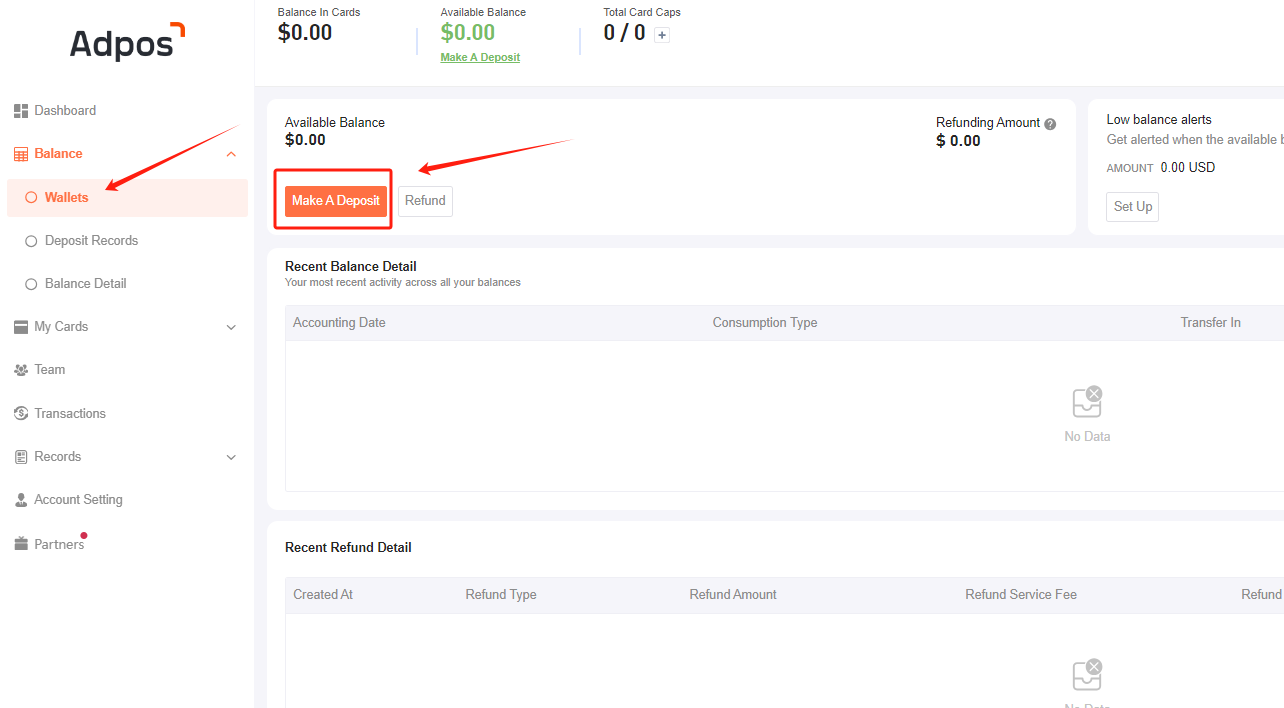
● How to top up your Adpos account and how to charge it
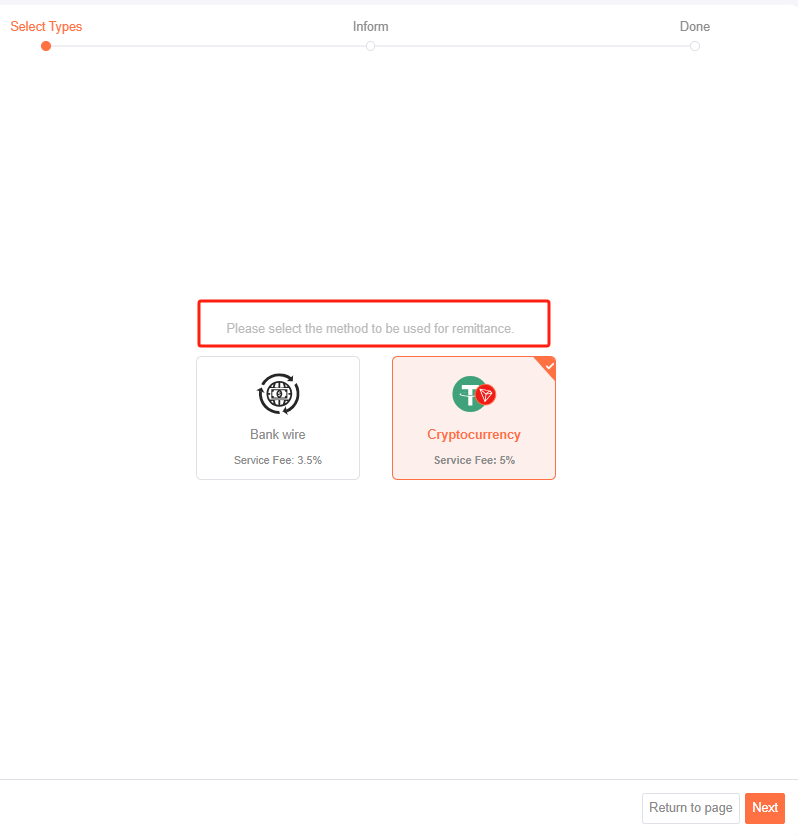
We support top-up methods: 1. Bank wire transfer 2.USDT 3. Capitalist 4、Affiliate program payment
Minimum Funding Amount:
*Bank Wire Transfer (Adeer contracted customers): 1000 USD
*USDT/Capitalist: 100 USD
*Affiliate program payment: unlimited amount
Charges:
when topping up will be
-3.5% commission via bank transfer. (Bank wire)
-5% commission via USDT(TRC-20)(ERC-20).
*If you are a team or an individual with a high budget, please contact our AM for a favorable rate.
-
What is difference between standard cards and shared cards?
Standard card: A self-balance card, each card has a seperate balance and you need to top up the balance of the card individually.
Shared card: All cards share a single balance and there is no need to top up each card's balance separately.
-
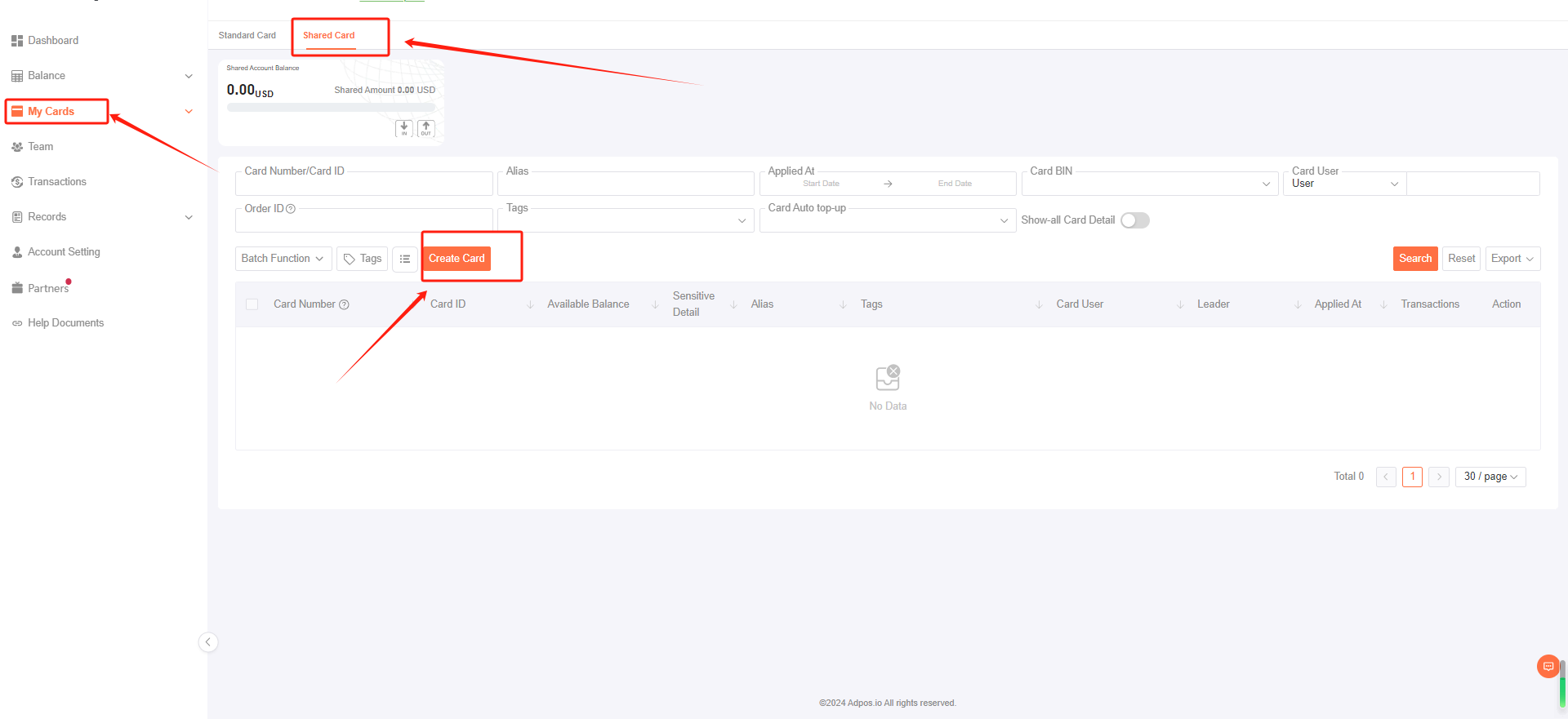
How to activate Shared Balance Mode(Shared cards)?
Now the system will automatically activate the shared-balance mode(shared cards) for you after you activate your account, you can activate the shared card in "My Cards -Shared Card" section.
-
How to change your account trade password?
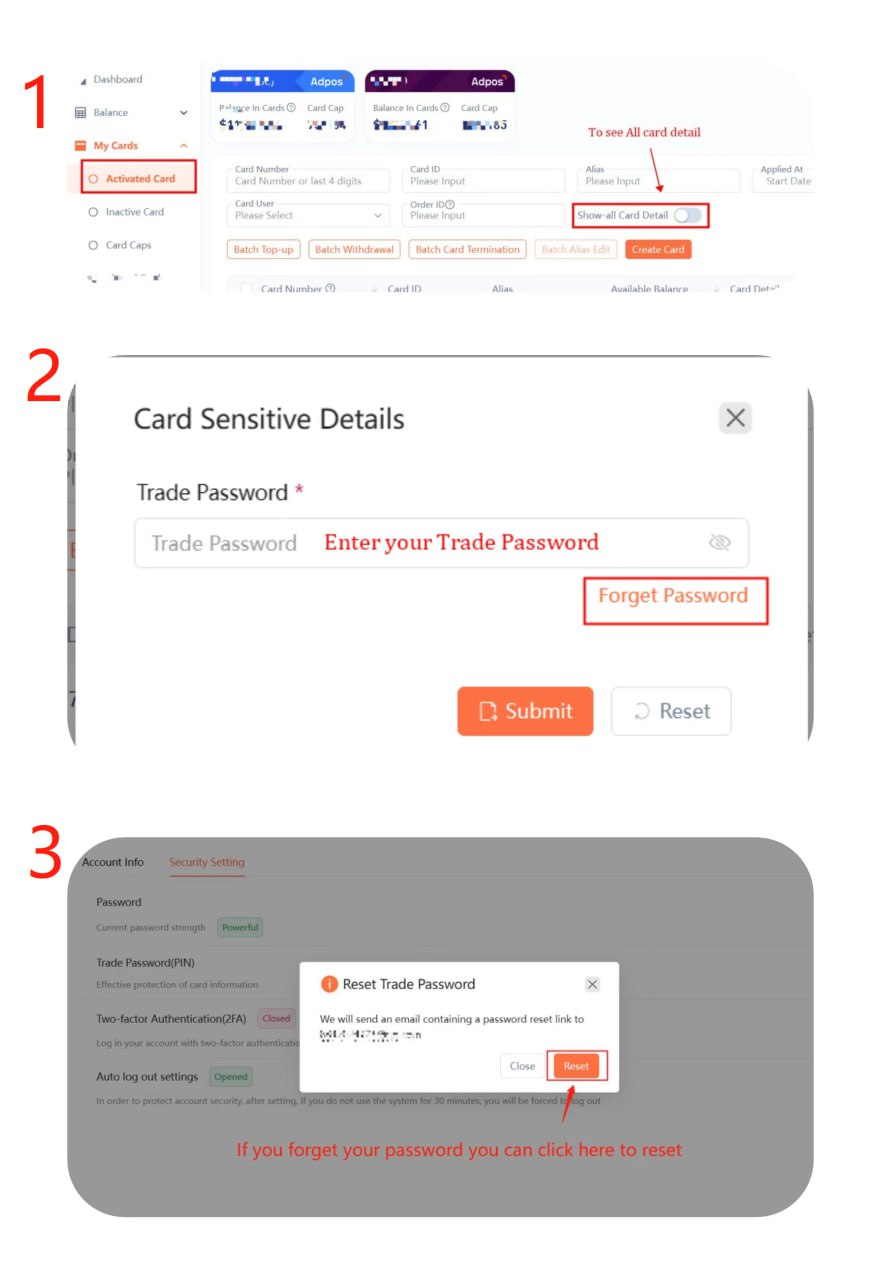
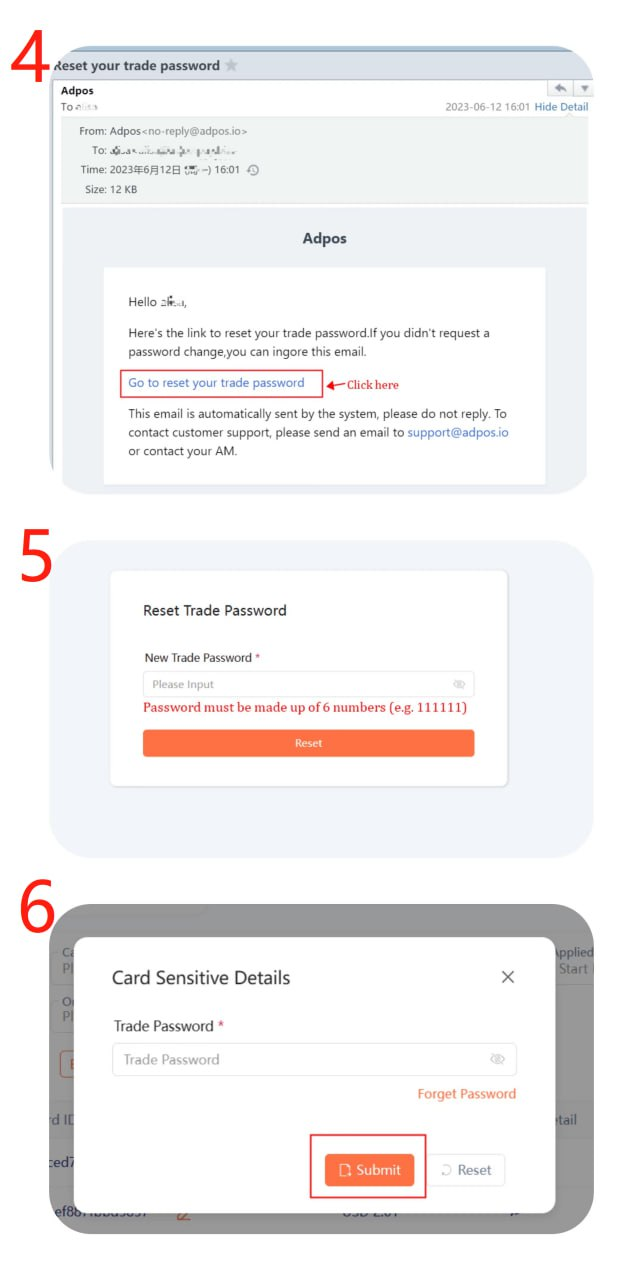
We will protect your card information by displaying only the first five and last four digits of your card, hiding the card's expiration date and CVV. You will need to enter your transaction code to access this information.
-
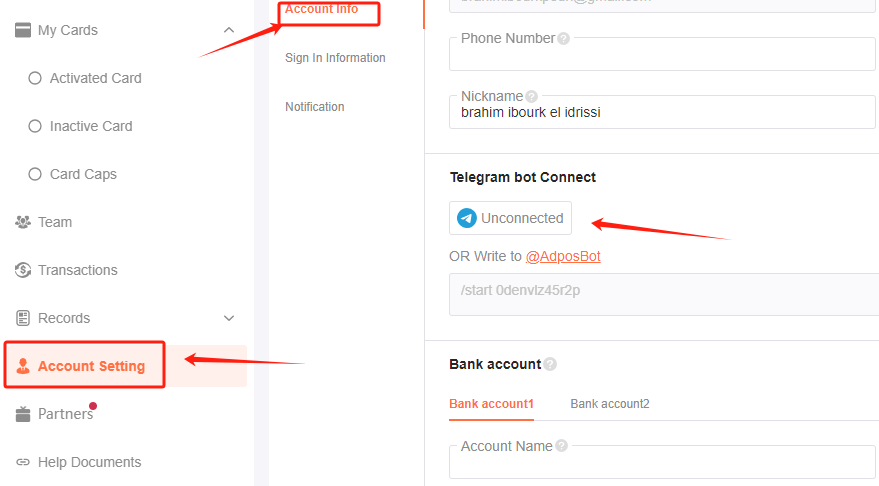
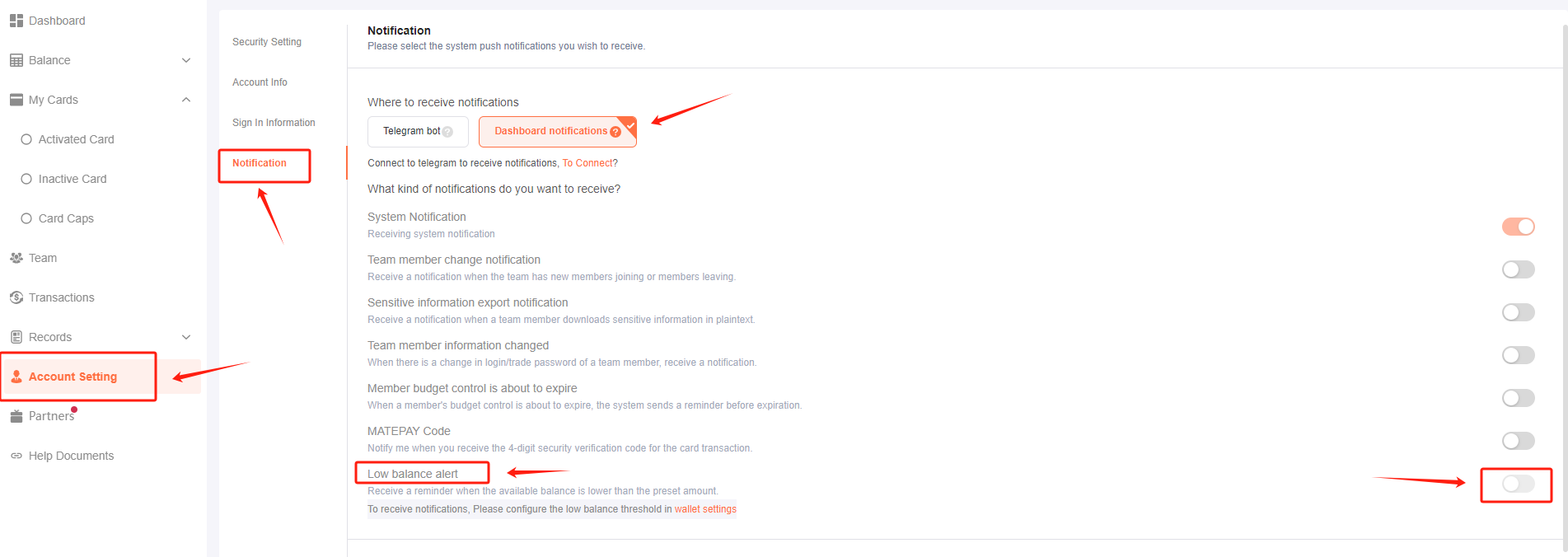
How to set up Adpos low-balance warning notification?
Set up Telegram Bot Connect in "Account Setting- Account Info- Telegram Bot Connect"
Turn on low balance alert warning in "Account Setting- Account Info- Notification" setting.
3. Virtual Card Management
-
How to create a virtual card
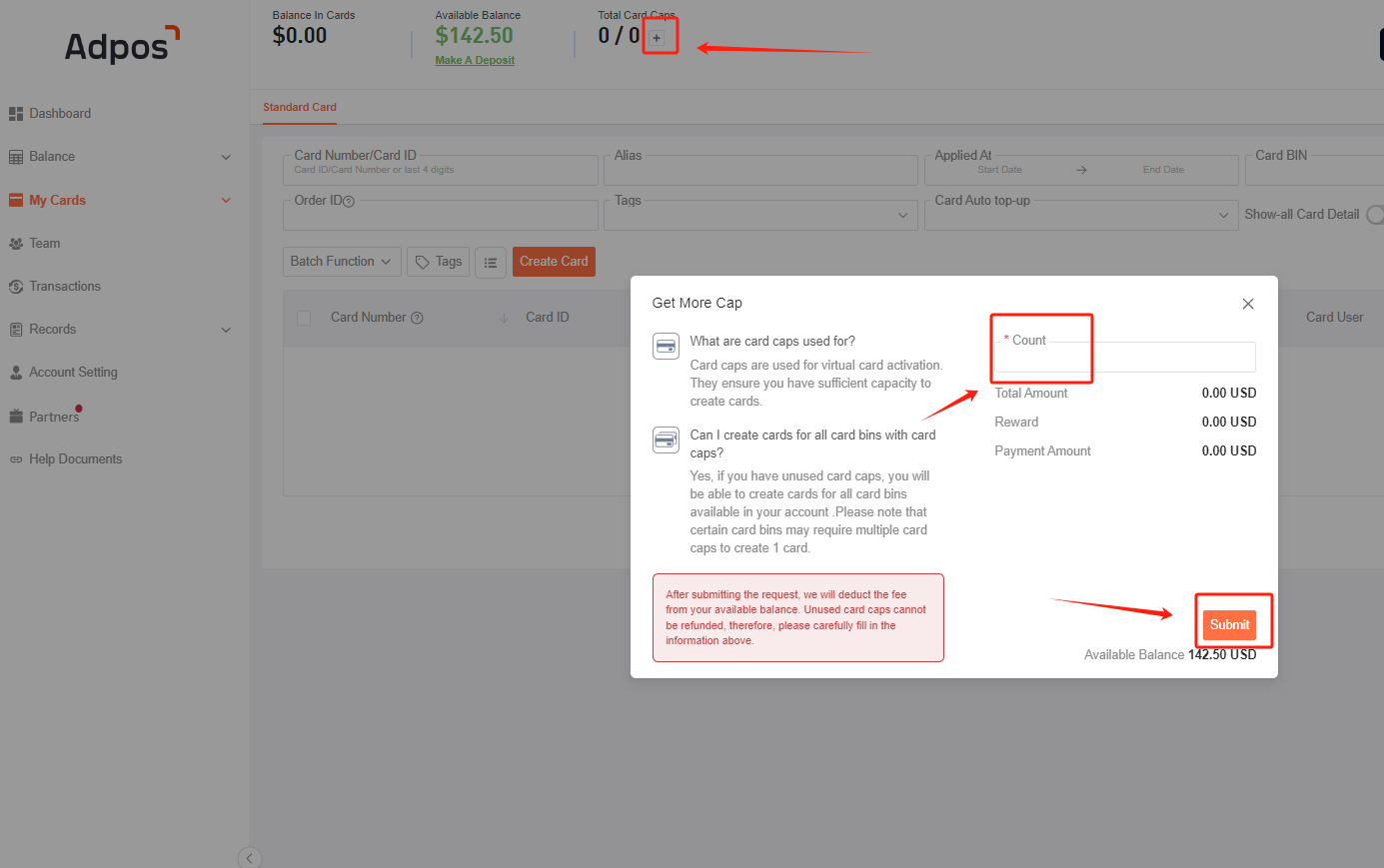
Before creating a card, you need to purchase a new card cap.
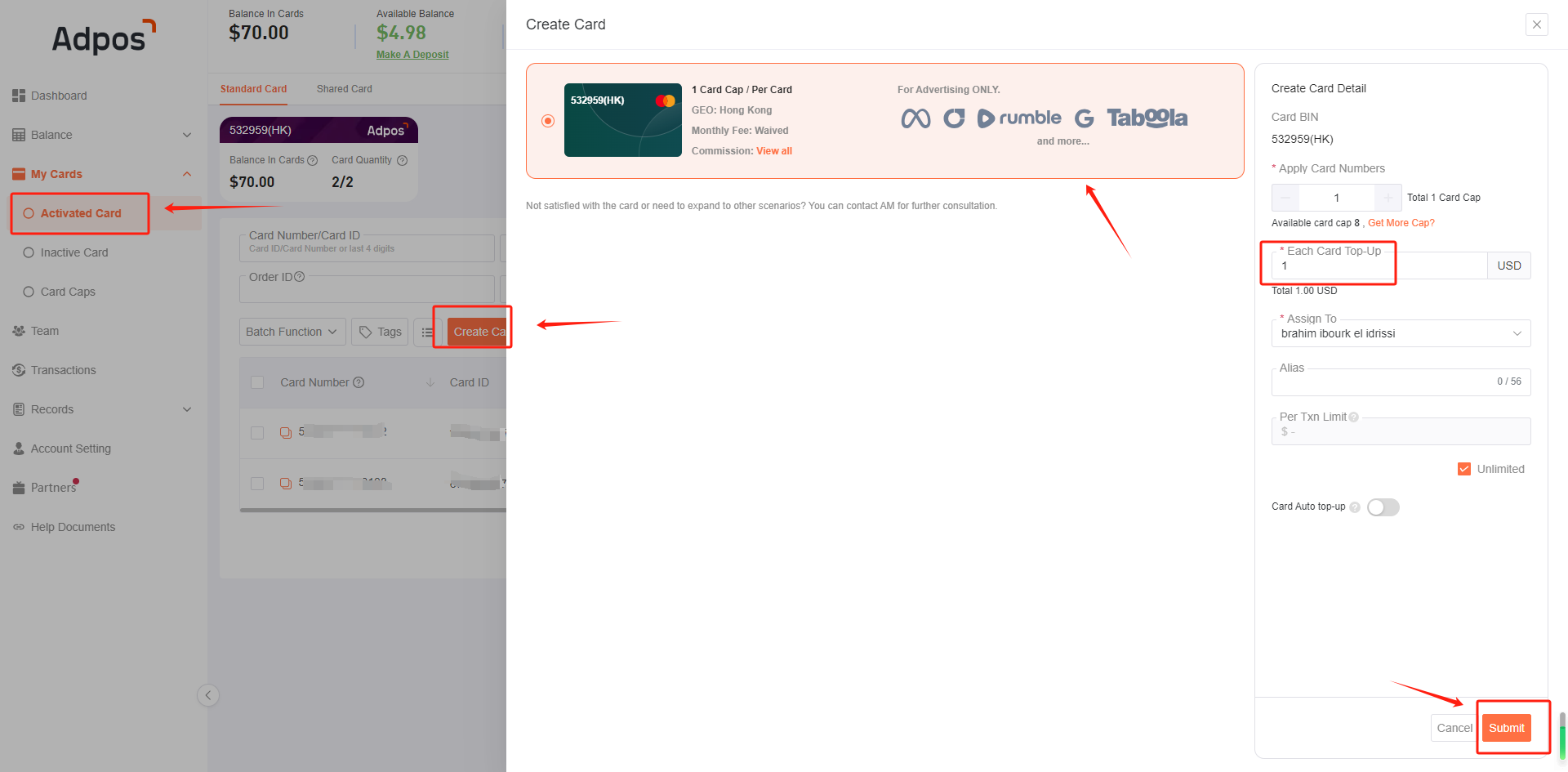
Then click, My Cards- Effective Cards- Create Card; select Card BIN, fill in the number of cards, the amount to be recharged, and then submit, wait for a moment, the newly created card will appear on the top of the list. You can also set the card tags, Card Auto top-up.
-
What is card cap and how does it relate to a virtual card?
To create a card, you must first purchase a card cap(new card quota, the maximum number of cards allowed to be created), one card cap corresponds to one virtual card. Each card BIN will correspond to the required new card quota (Card cap).
-
How to view and modify card information
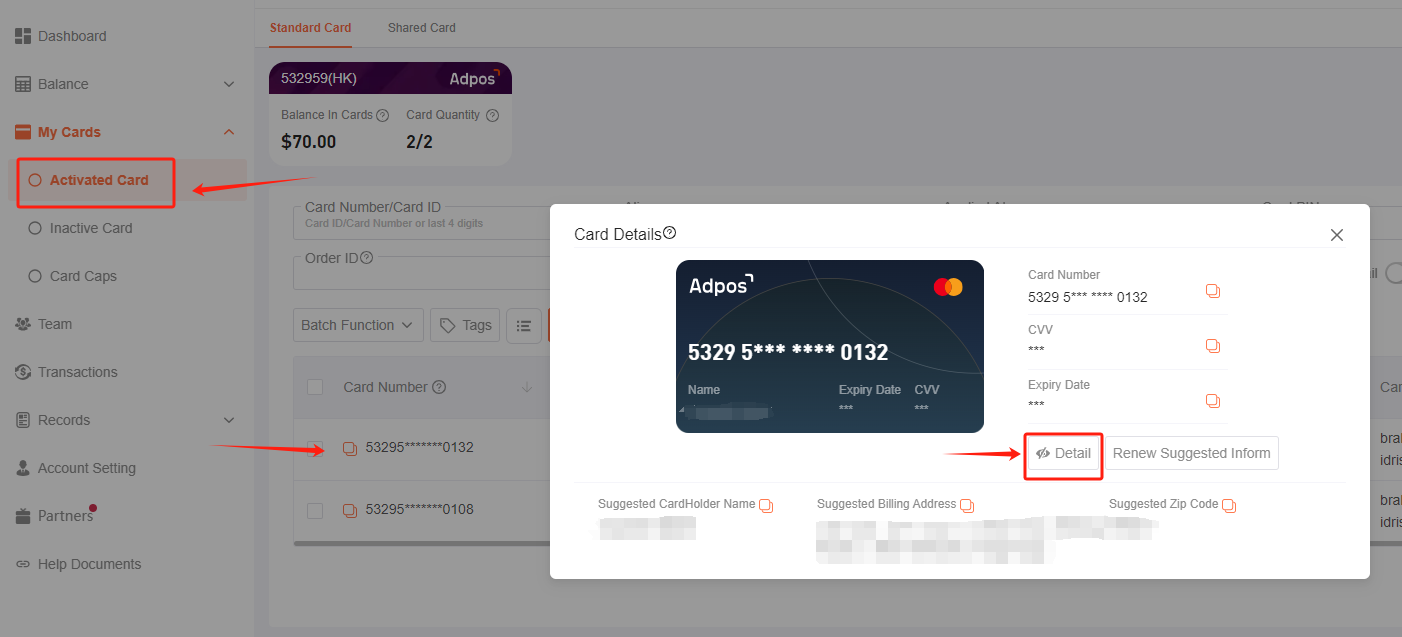
Click on the card you want to view in the Active Cards section, click Detail, and enter your Trade Password to view your card information.
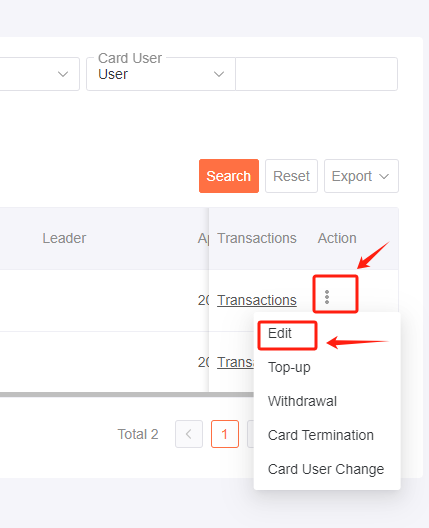
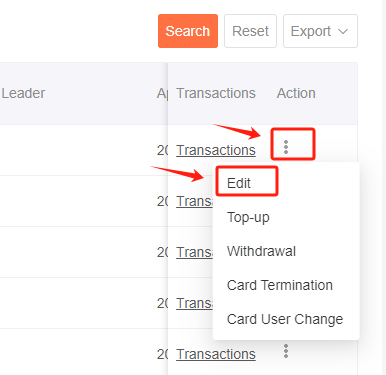
In the active cards, there are Action buttons after each card information column, click on them and select Edit.
-
Whether the card has a spending limit
You can set a single spending limit in the card edit, or select "Unlimited".
-
Whether you can terminate your card and return the remaining balance?
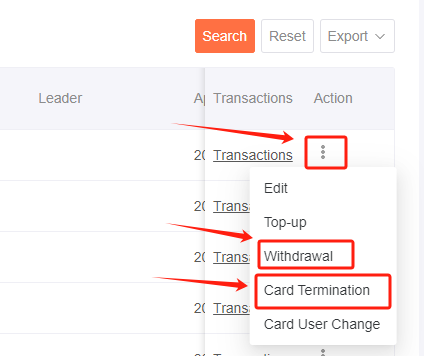
Yes. Go to the "Activated Cards" screen. Click the "Action" button on the right side of each card to delete the card or withdraw the balance. Deleting a card will automatically perform a balance withdrawal.
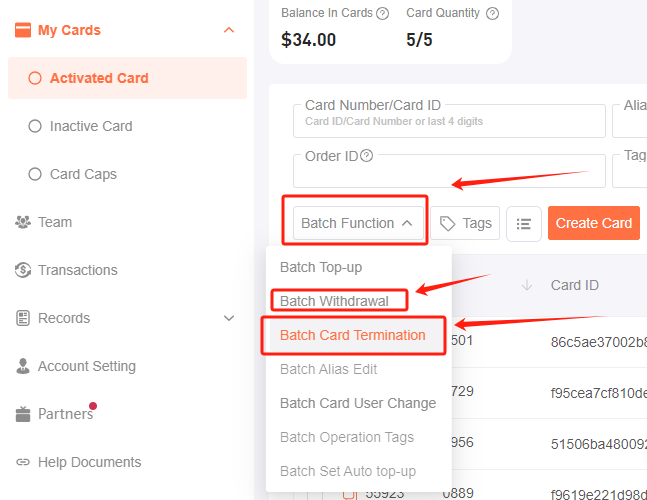
You can also use the Batch Function to delete cards and and take out balances.
Please Note:
Deleting a card requires caution! If you want to delete a card, please withdraw the balance from the card and wait for 7 days (in case the FB refund doesn't arrive) before deleting it, which is not recoverable deletion.
-
How to categorize and label virtual cards
Go to the "Active Cards" page. Click the "Action" button on the right side of each card to edit the card.
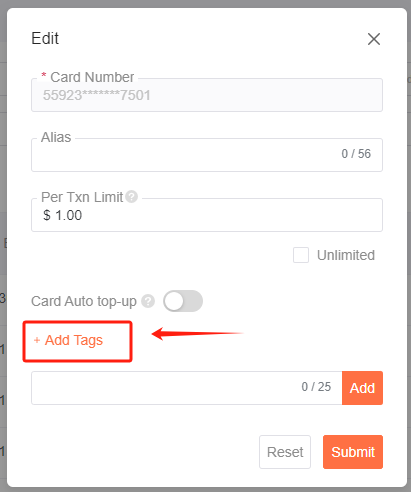
Click"Add Tags" to add a label to your card
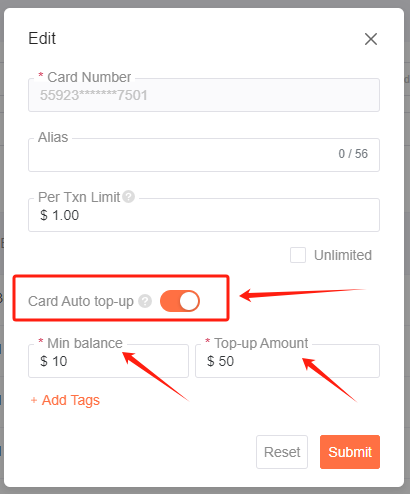
Does the standard card support Card auto top-up?
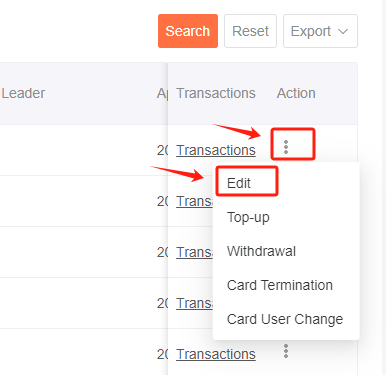
Go to the "Active Cards" page. Click the "Action" button on the right side of each card to edit the card.
Turn on the Card Auto top-up
4. Transaction Management
-
How to view transaction details
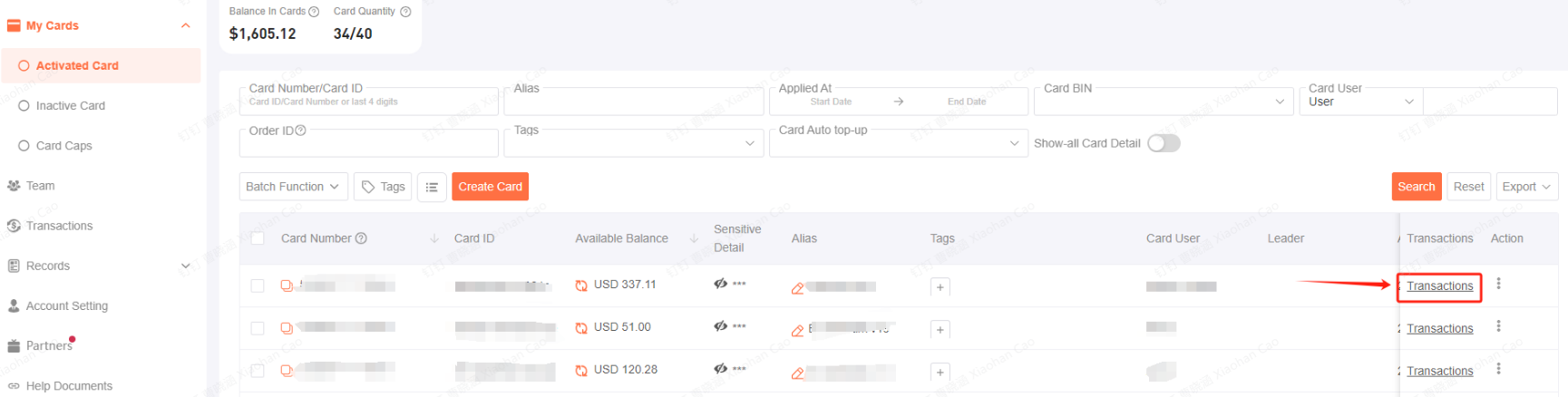
You can view the transaction details of each card by clicking on the "Transaction" of each card in the active card.
In the "Transaction" column, you can also view the overall transaction details, and select the card ID, transaction date, Card BIN, transaction status, merchant name, transaction type, card alias, card user, card type, etc. with filters to check.
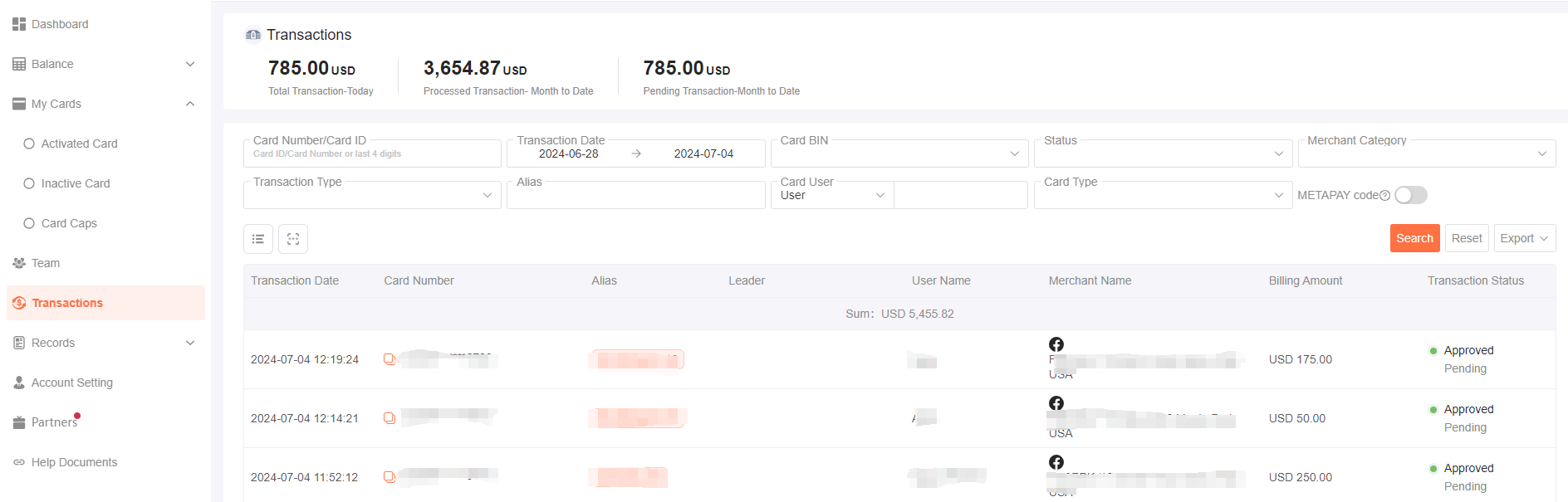
If you want to generate an Excel spreadsheet, you can click on "Export" to export the breakdown sheet.

-
Biling status explaination:
Pending transactions:
It happens when you make a purchase using your card. The transaction is authorized but not yet fully processed, and it willappear as "Approved(pending)" on your account. The amount is deducted from your balance during this time
Pending transactions need to wait 3-5 business days to be settled, sometimes up to 10 business days or more.
While a transaction is pending, it cannot be stopped or canceled, even if the card is canceled.
Void transactions:
It happens when a transaction being canceled without any card balance being deducted.
Processed transactions:
It happens when a transaction has been settled.
Released transactions:
It happens when a pending transaction is no longer being processed. The released transaction amount will be retumed to yourbalance, but we show the initially authorized amount for your convenience.
Please note: The status of the transaction may change from "Pending" to" Processed" in 3-5 days after the transaction is completed.
5. Team Management
● How to add new members
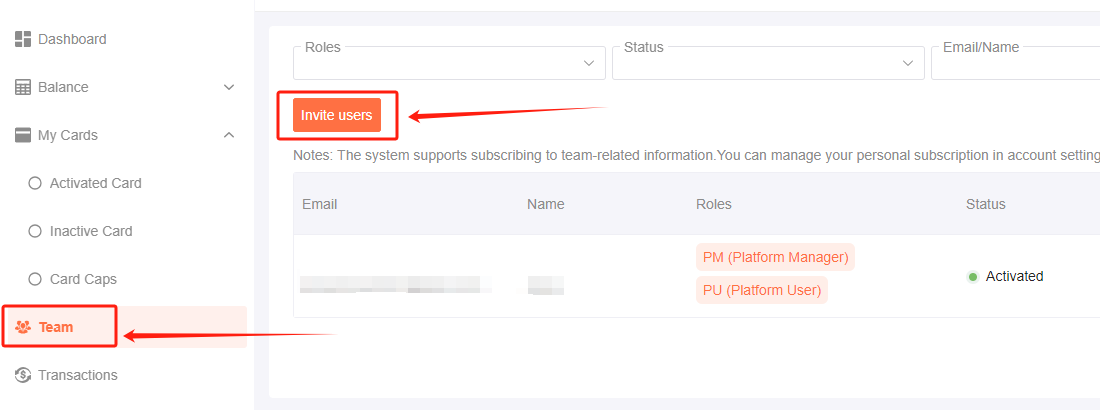
You need the email address of the team member, and select "Invite Users" on the Team page.
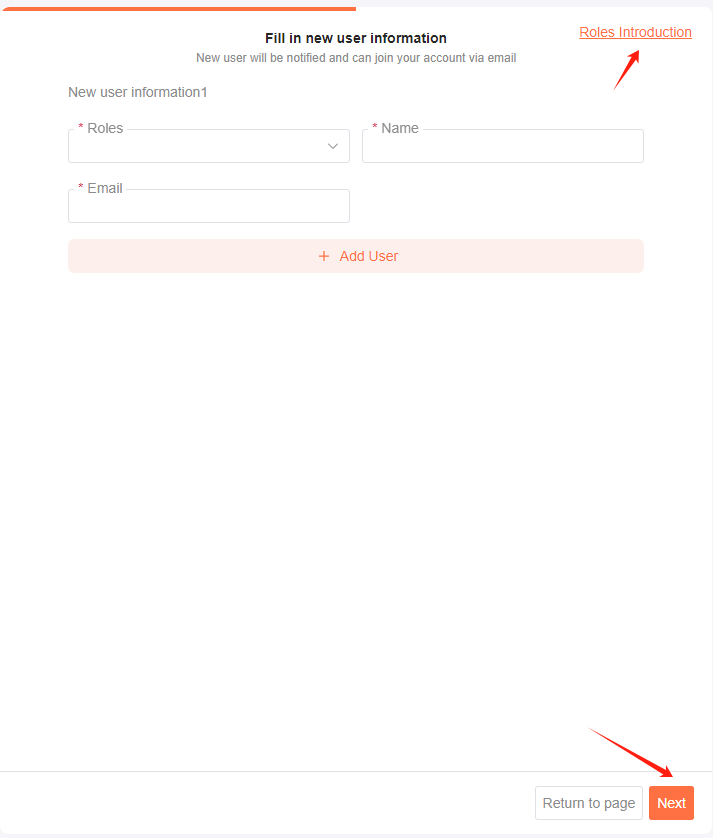
Enter the relevant information and click Next. You can click "Role Introdution" to view the team user profile.
-
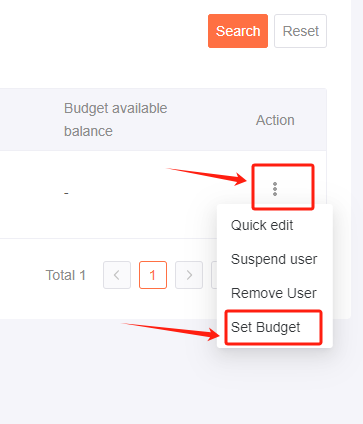
Can I set a spending budget for members?
Yes, you can. On the team page, click Actions after the member information field that you want to operate, and select Set budget.
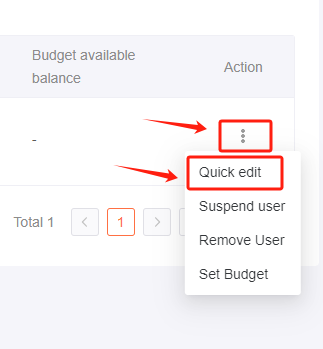
Can I set a leader for a member?
Yes, you can. On the team page, click Actions after the information field of the member you want to operate, and select Quick Edit to set up a team role or set a leader for the member.
6. Financial management
● How to view team spending
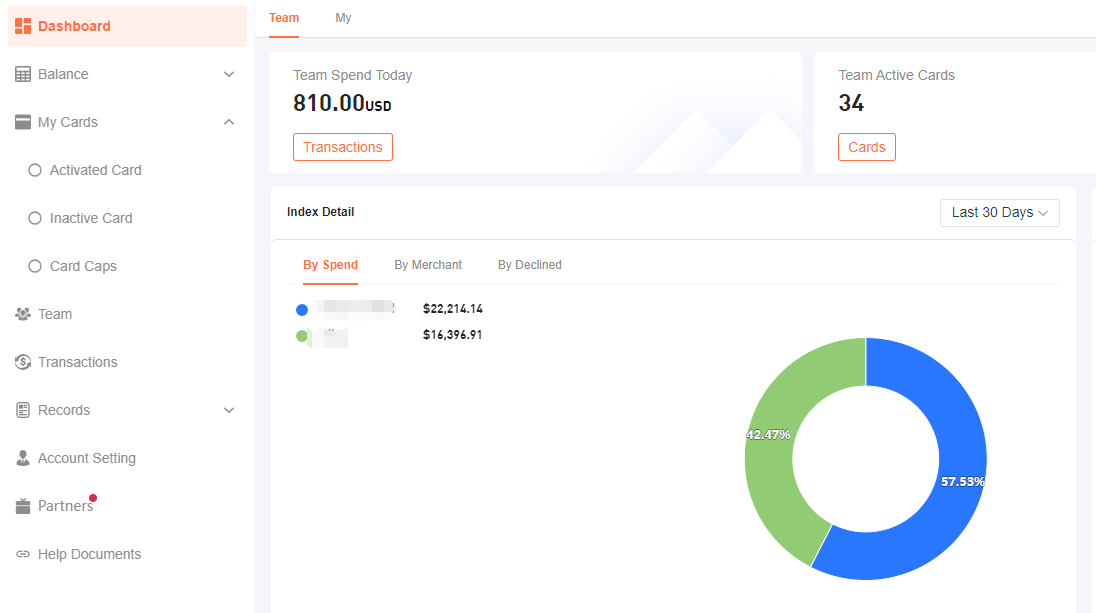
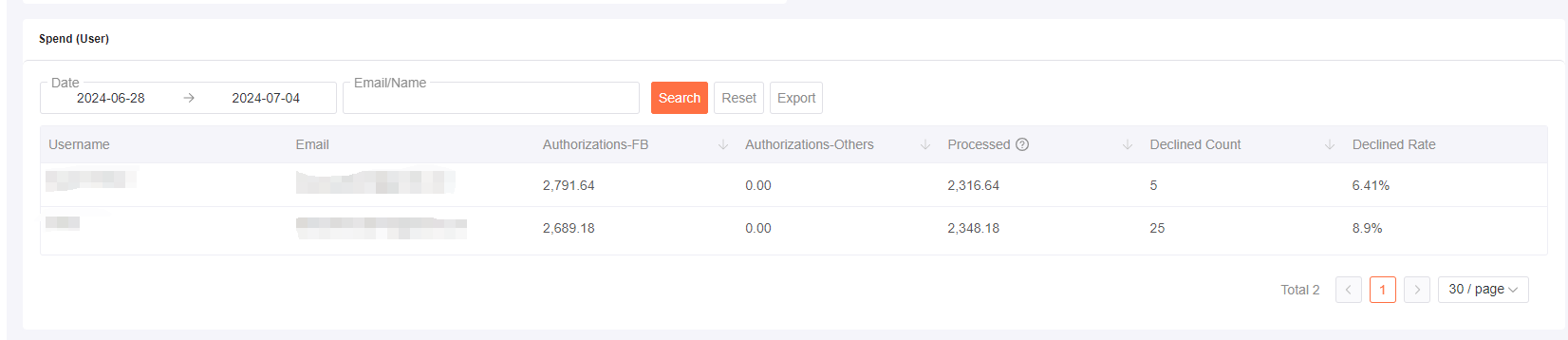
You can view member spending on the Dashboard page