Adpos Platform Guideline
1. Introduction
Adpos is an advanced payment solution platform for webmasters. We are aiming to provide a better virtual card online advertisement payment experience.
The Platform currently supports the following virtual card functions and corresponding
batch operations:
- Create and terminate cards
- Top-up to, withdraw from and edit alias for cards
- Collect payments from Networks and directly top-up to accounts
- Real time transaction records
- Team user setting and budget management
2. Get Started
2.1 Account Management
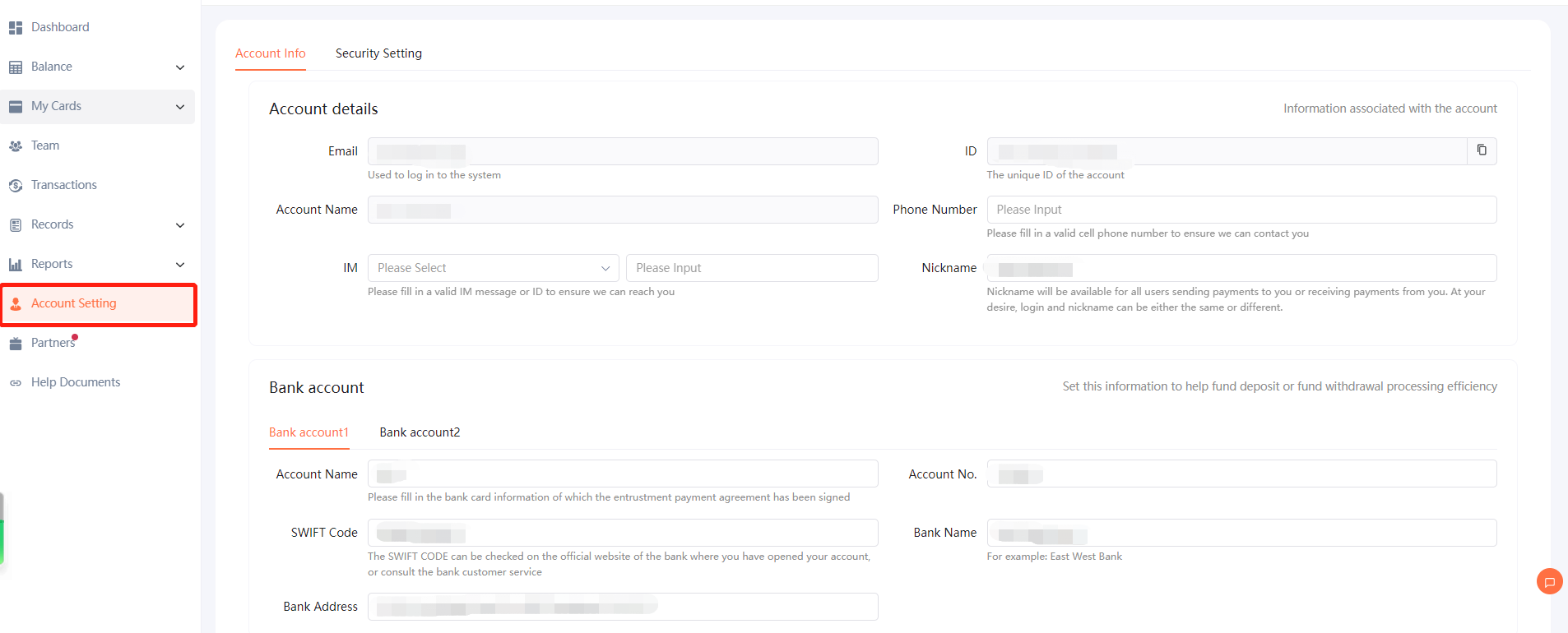
a.Account setting
Please go to "Account Info" to fill in account information and upload your company's license or personal passport ID for AM to process the application.
b. Changing password
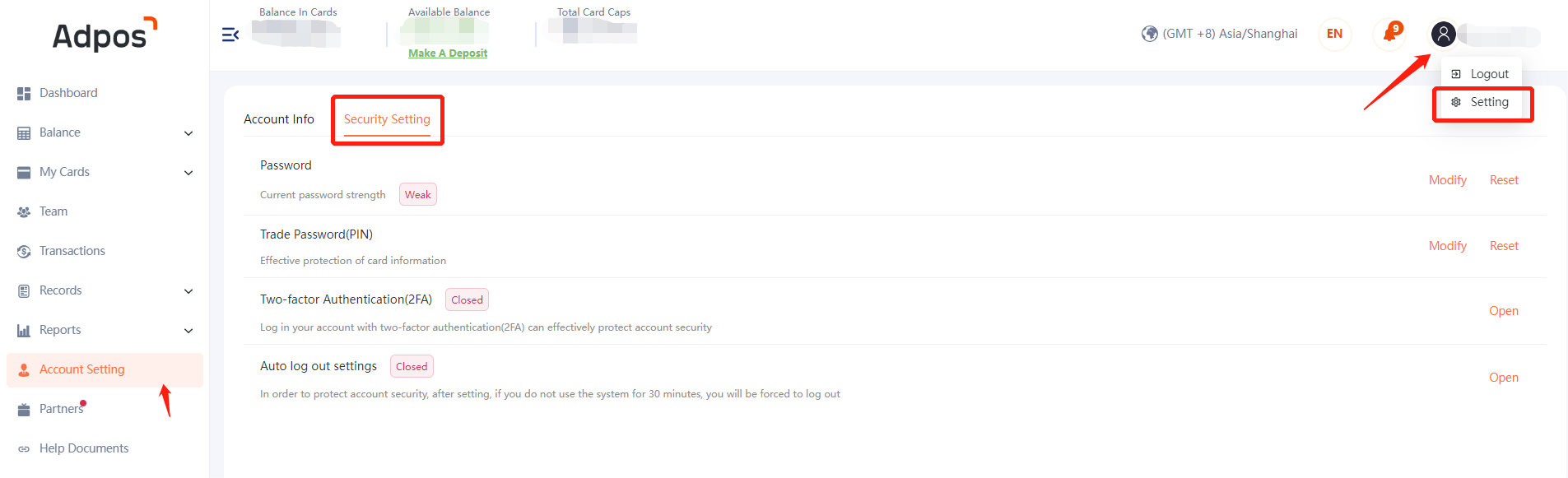
Please refer to "Setting" or "Security Setting" to change your password and make sure to set a password upon your first login.
You can also set PIN, two-factor authentication, and auto log out to better protect your account.
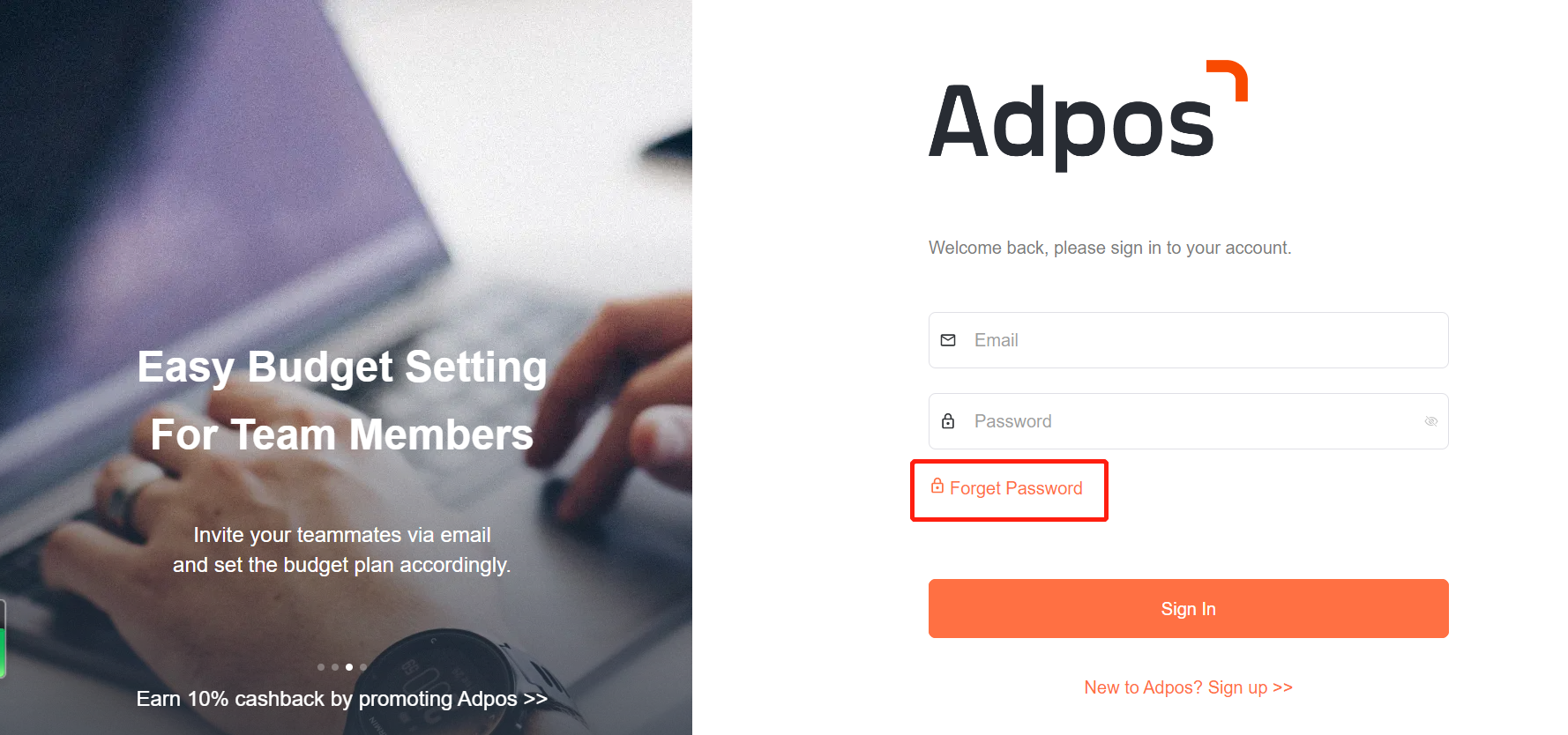
* If you forget your password, please use “Reset” or "Forget Password" to reset your passport through a link sent to your email address. Or, please contact your AM for further assistance.
2.2 Balance Management
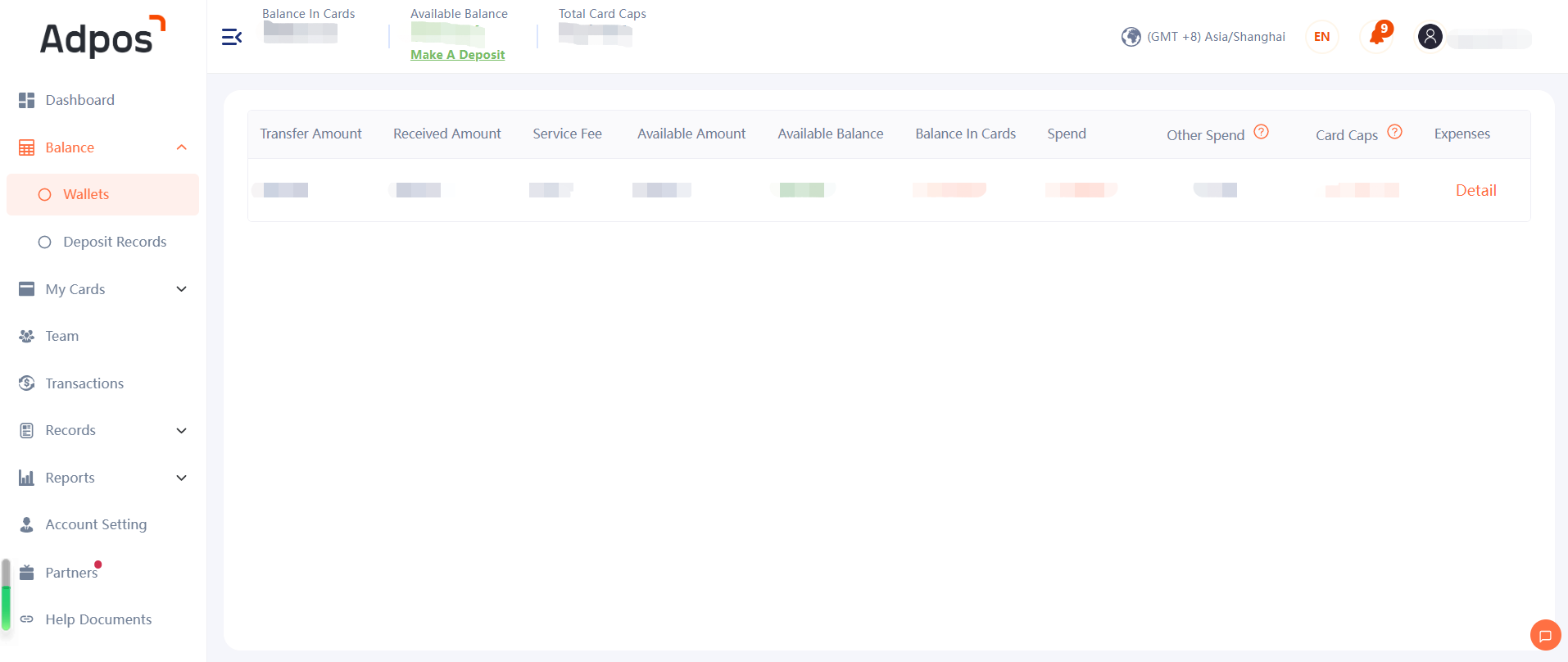
a.Wallets
Only PA (Platform Administrator)and PM(Platform Mananger) have access to "Wallets".
You can see detailed information of current available balance, spending, card caps etc. in this tab.
b. Deposit
- To make a deposit, you can go to "To Deposit" in "Balance" or directly to "Deposit Records" to make bank wire. We only accept USD. If you are looking for further assistance, please contact your AM.


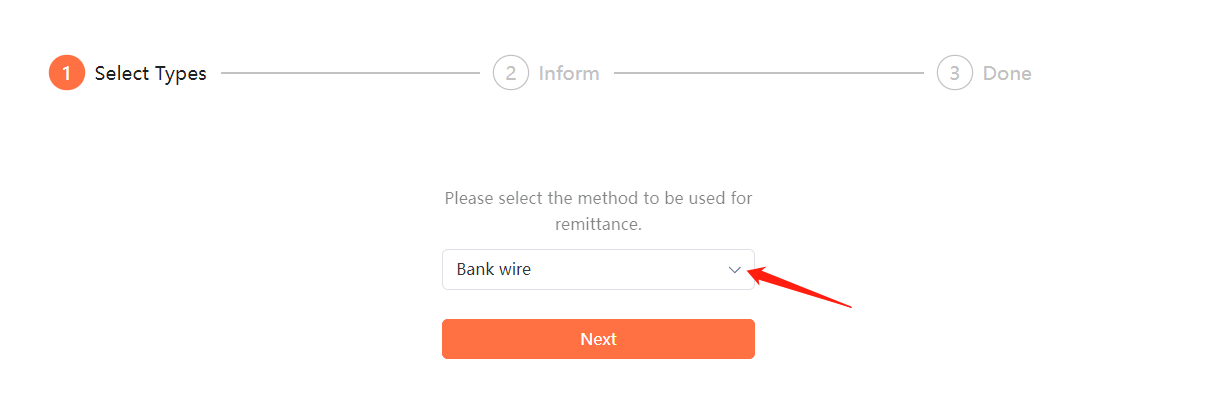
2. Please go to “Remittance Notice” to obtain our bank information.
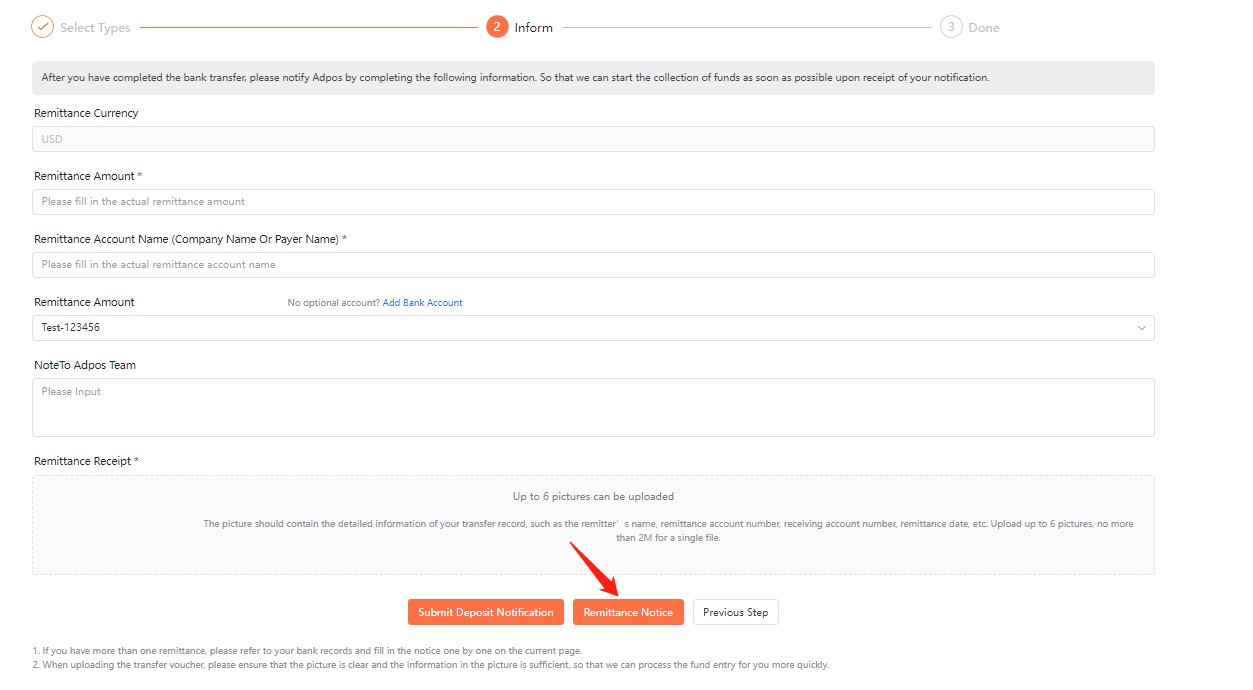
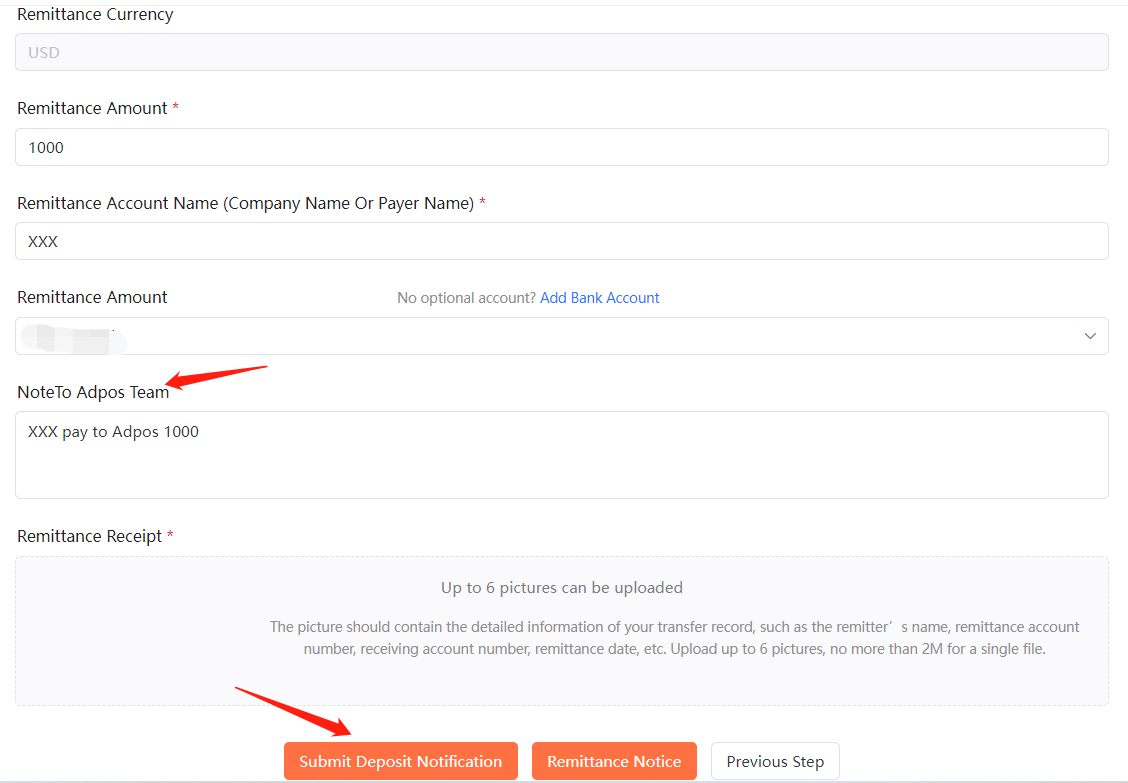
3. Please make sure to fill in all necessary information, which must be allied with bank settlement details.
2.3 Card Management
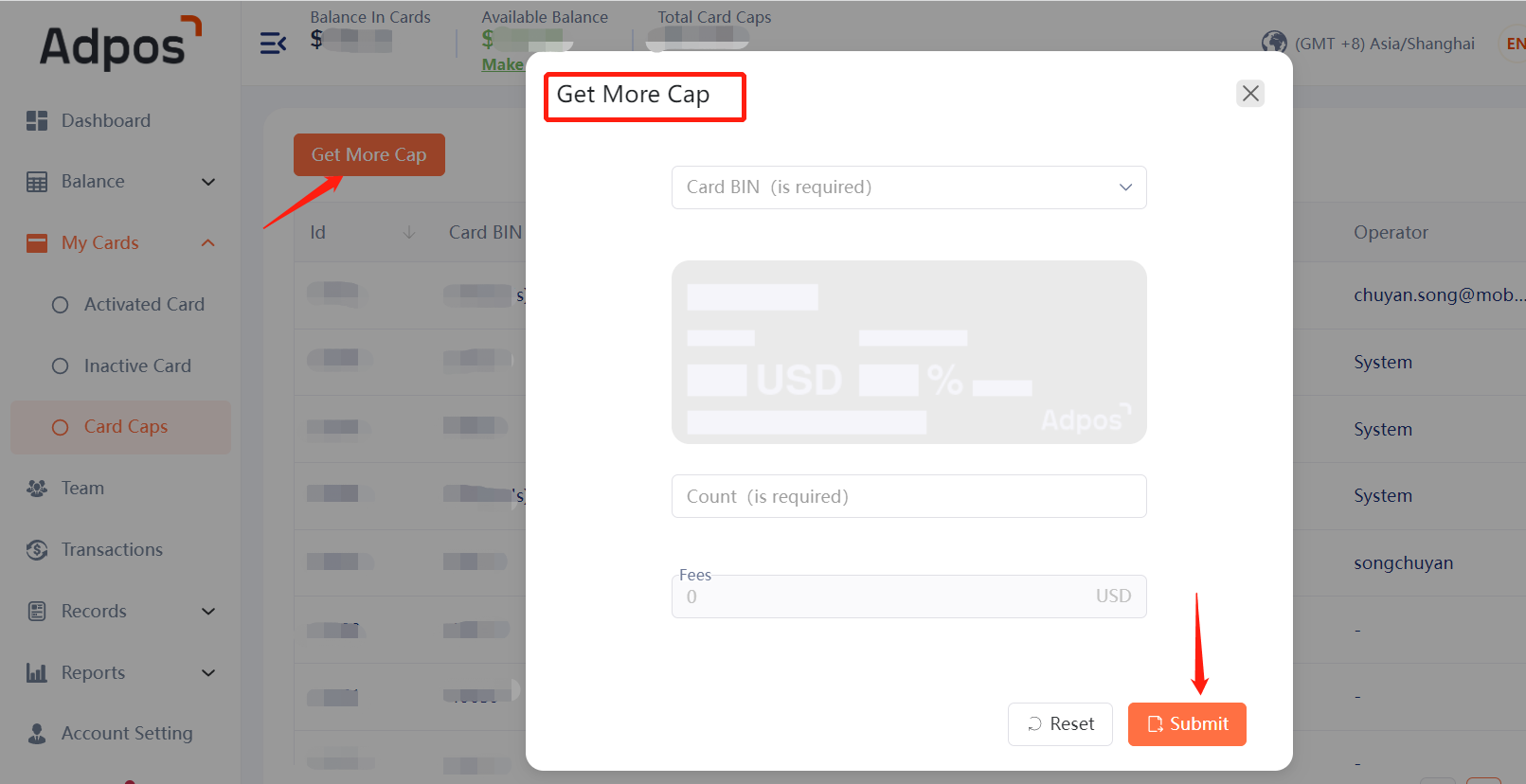
a.Purchase Card Caps
Please purchase card caps before creating new cards.(Contact your AM for card opening fee rate)
b.Create Cards
To create cards, please go to "My Cards" .
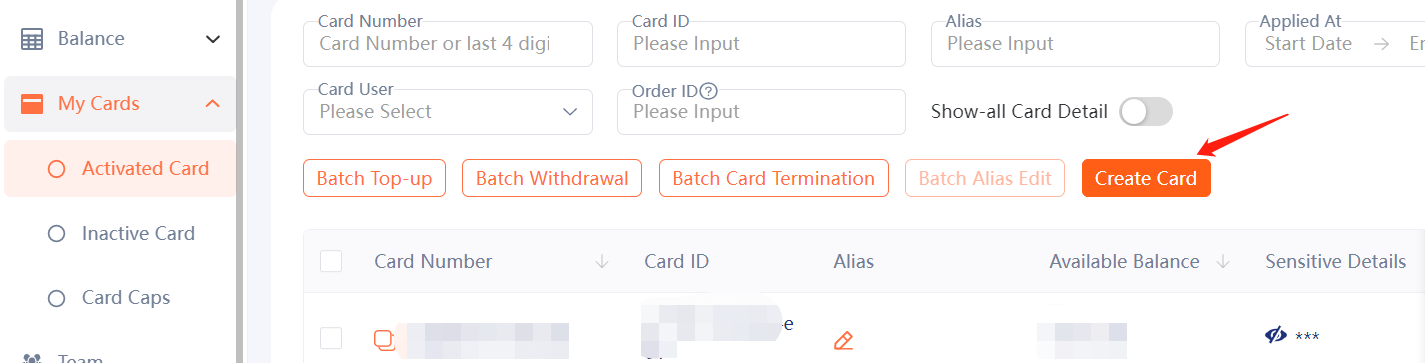
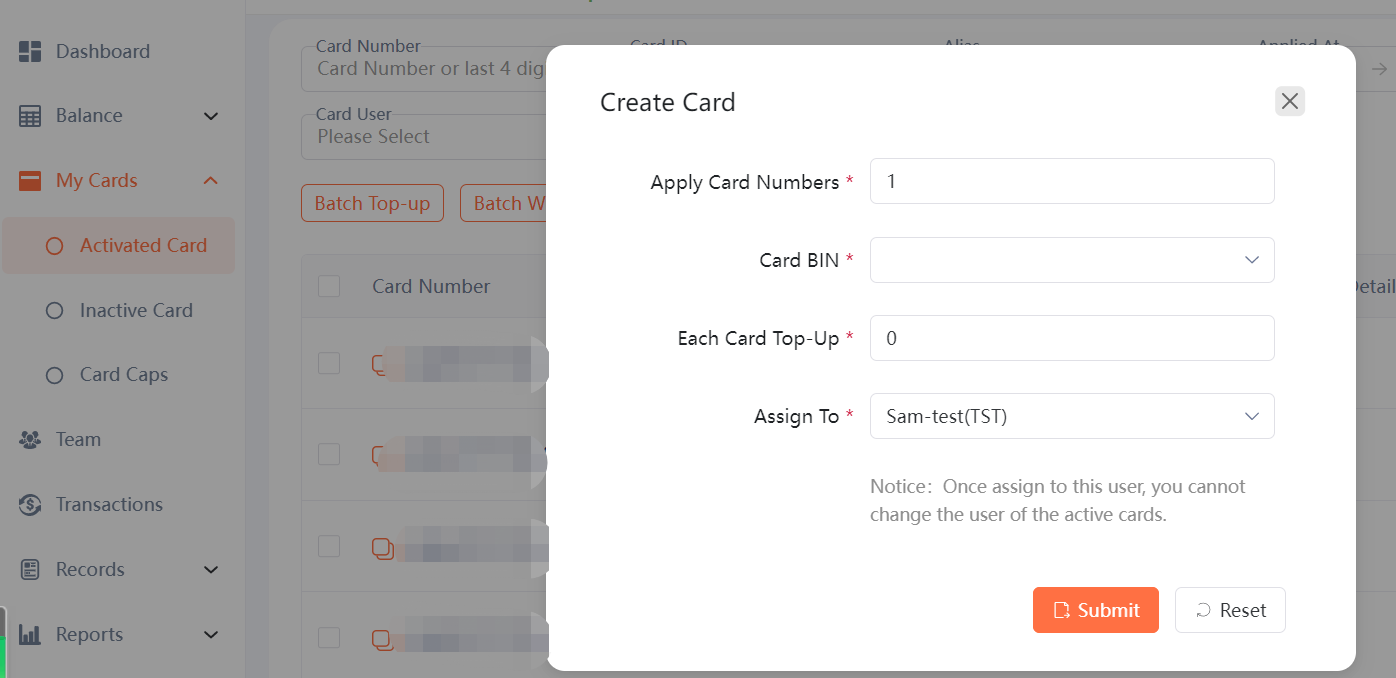
Fill in necessary information and submit the request. New cards will appear at the top of the list once they are created.
*Make sure to purchase card caps before creating cards.
c.Top-up,Withdraw, and Delete cards
Please go to "Action" to Top-up, withdraw or delete cards.
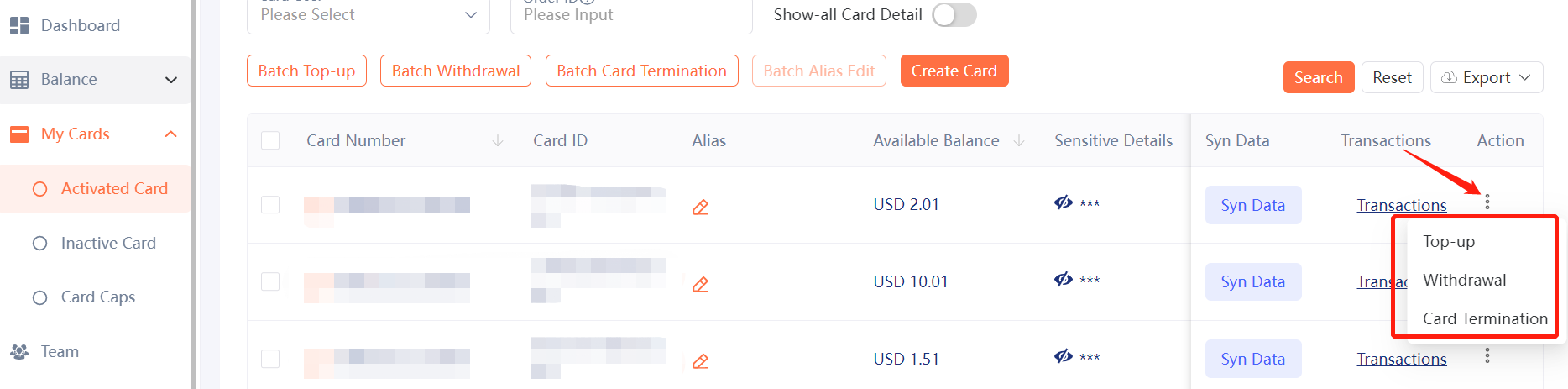
*Please do not delete your card before withdrawing all remaining balance and monitoring it for at least 7 days. This will prevent you from not being able to receive refunds that are on the way. Once you delete a card, it can not be recovered.
2.4 Transactions
a.Verification Code
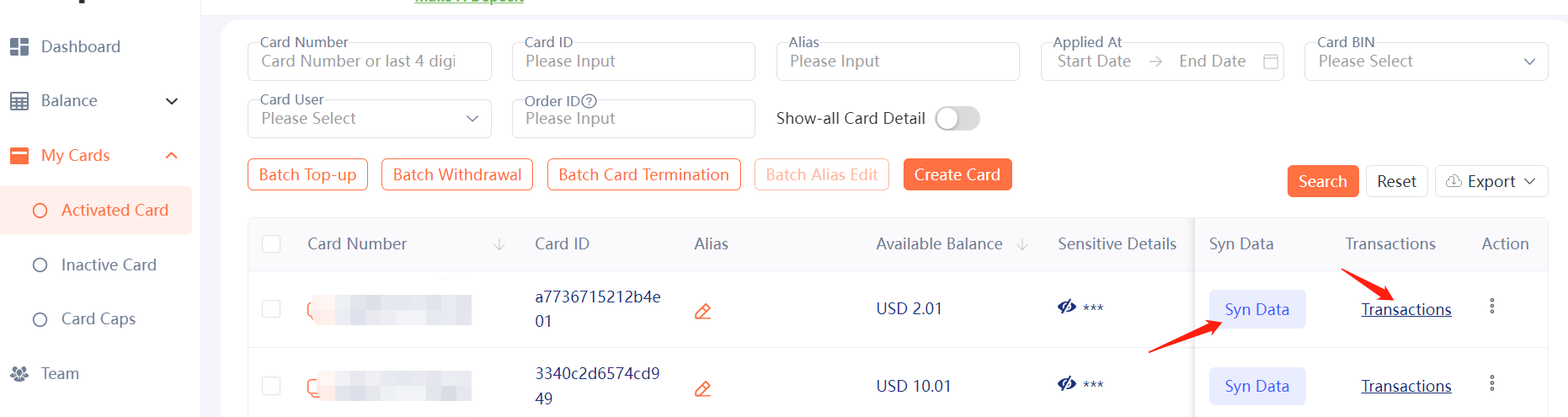
Go to "Transaction" tab and the verification code can be found in the Merchant Name column. For FB, it's a 4-digit code.
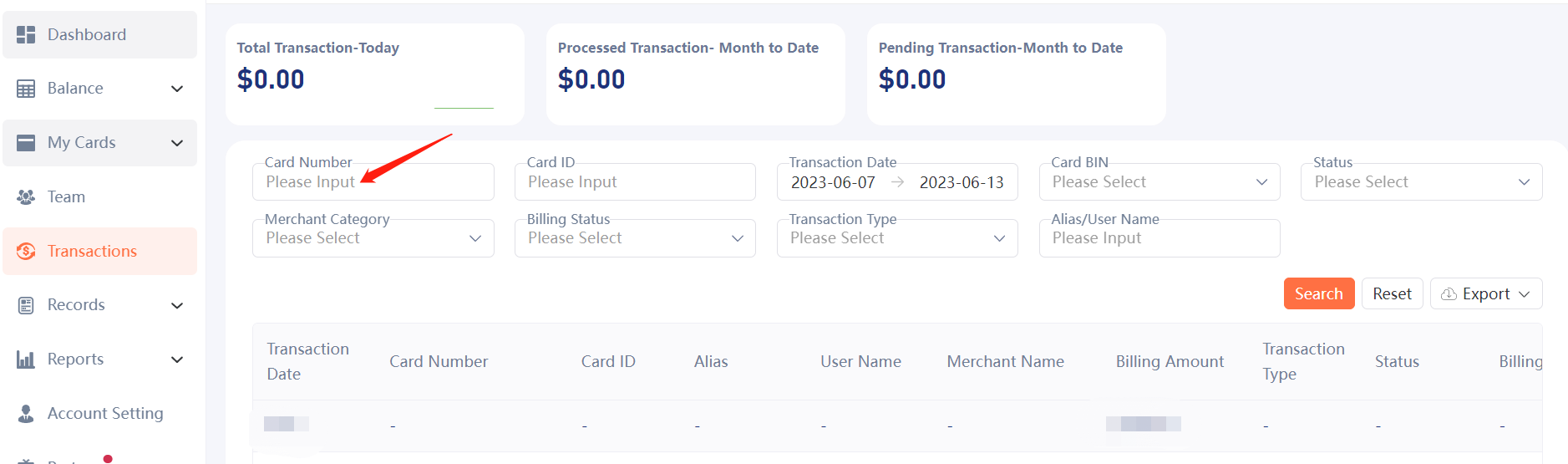
*Please note that sometimes there are new transaction records but no code in the Merchant Name column. Please go to "Activated Cards" to sync transactions and it will show up in 1-5 minutes.
b.Billing Status
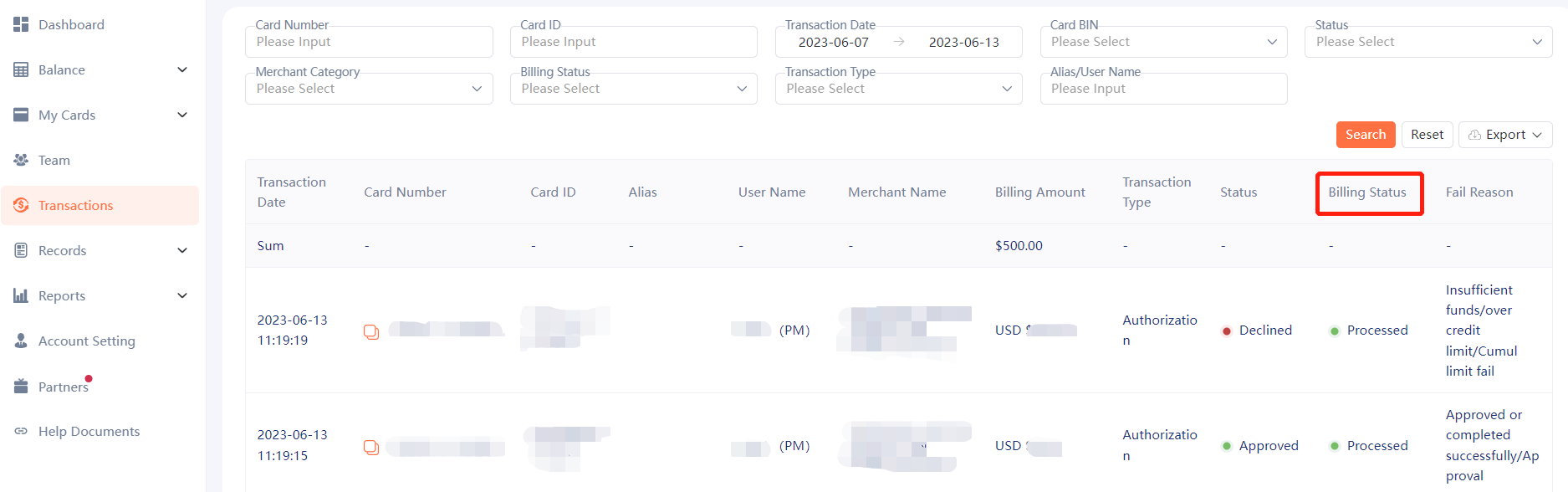
Pending:Unsettled. If this transaction remains pending for more than 8 days, we will release it back to account balance within a certain cycle.
Processed:Settled. This transaction is settled in the bank system and no refund will occur.
Release:This transaction has been released back to the account.
*Usually it will take 3-5 days for transactions to settle.
- Advance Features
3.1 Card Management
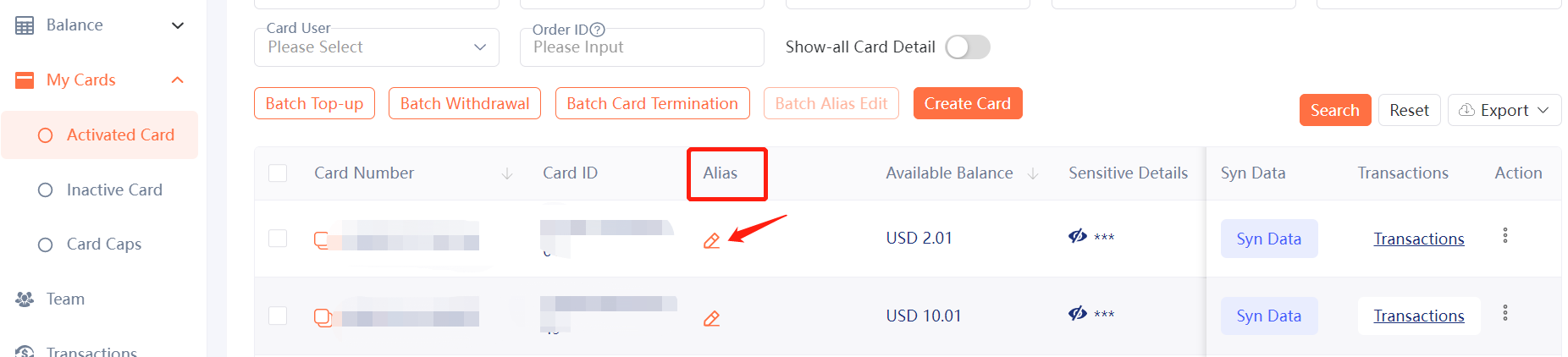
a.Setting Alias
Edit alias for single card.
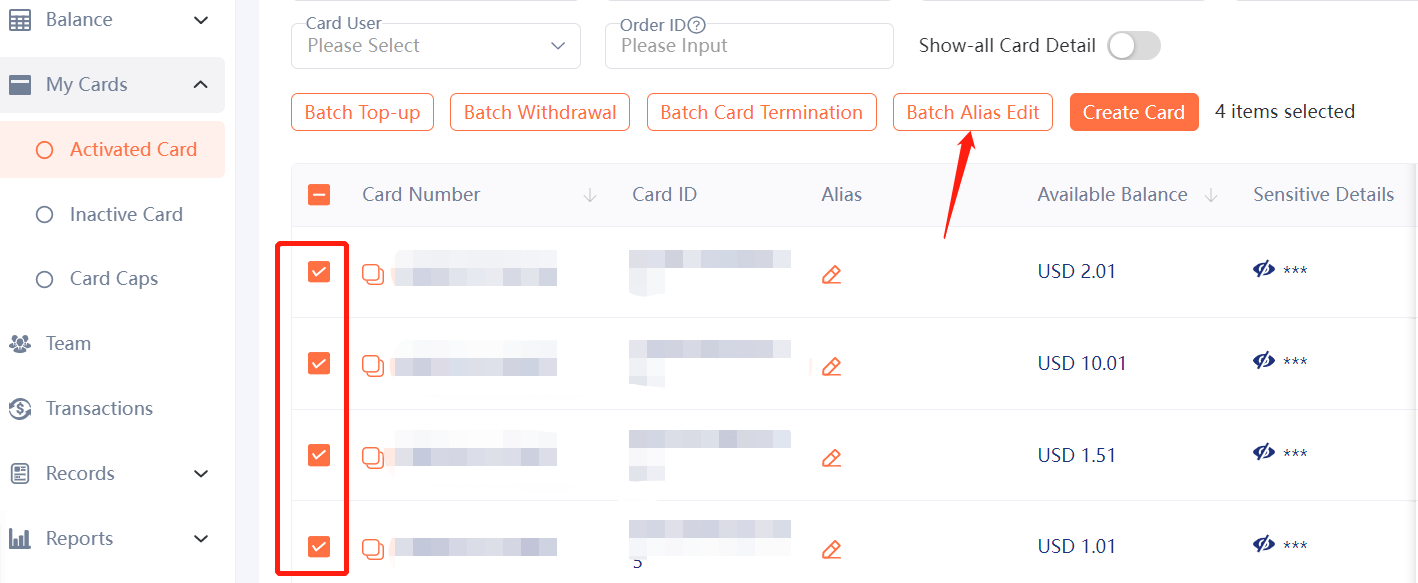
Edit alias for a batch of cards.
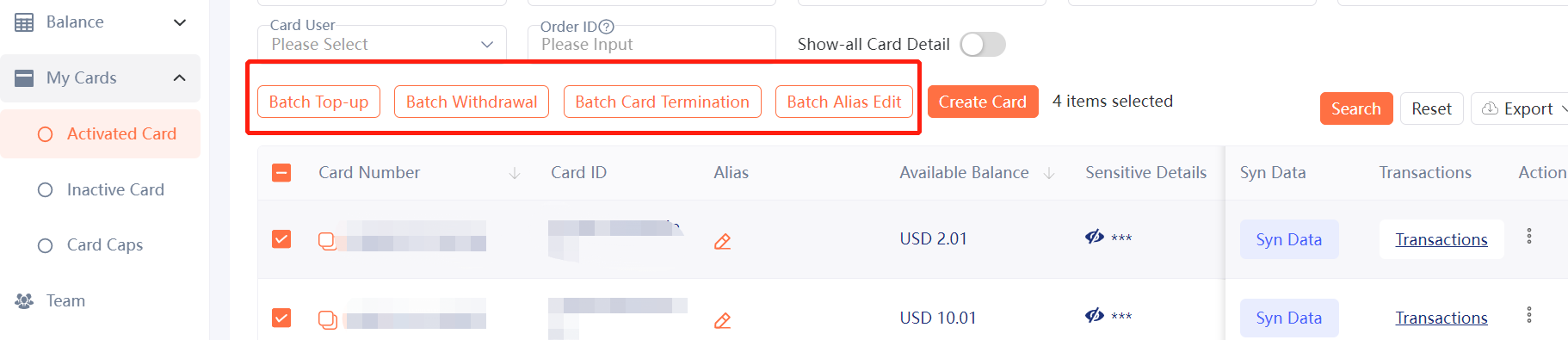
b.Batch Top-up, Withdraw, and Delete Cards
Go to "Activated Card" to select multiple cards and do batch top-up, withdrawal and termination.
3.2 Team Management
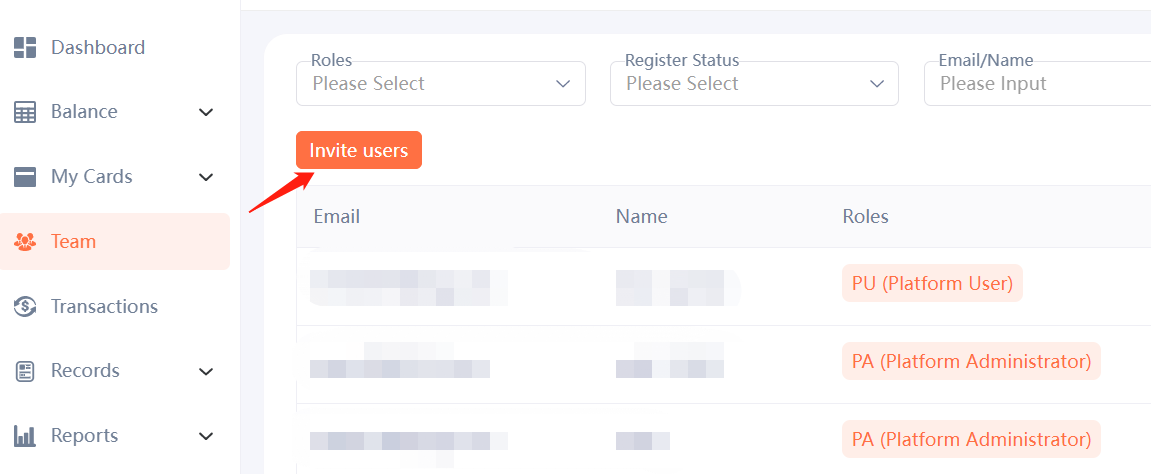
a.Invite Team Users
PA can invite team users through emails and then allocate roles for them.
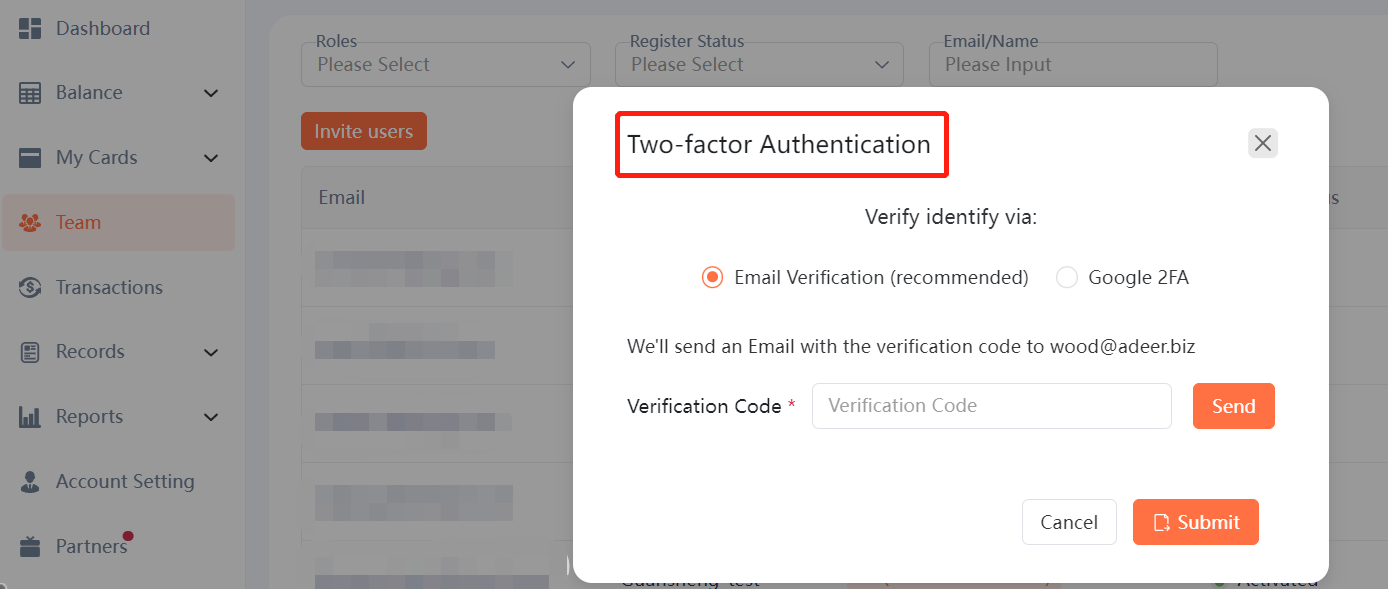
Please note that to invite new members, PA users need to receive a verification code through the management mailbox or confirm through the Google password device of the management mailbox.
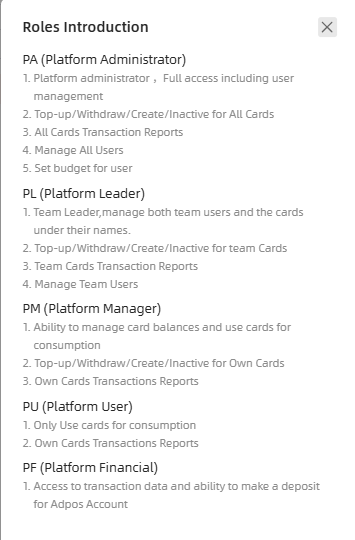
There are four roles that can operate accounts at the same time. Different roles of accounts have different permissions.
b.Budget Management
PA can set budgets for each team member.
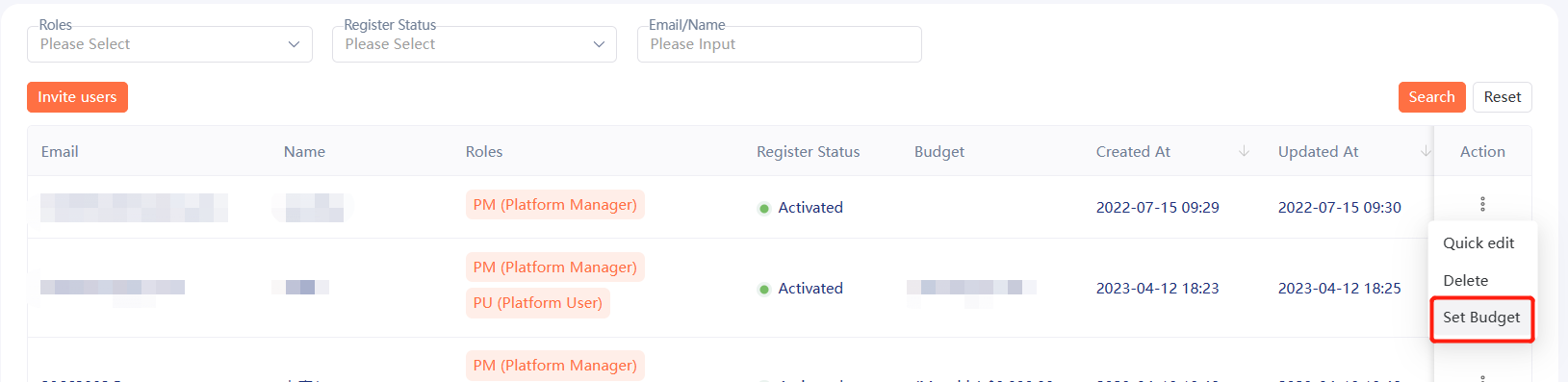
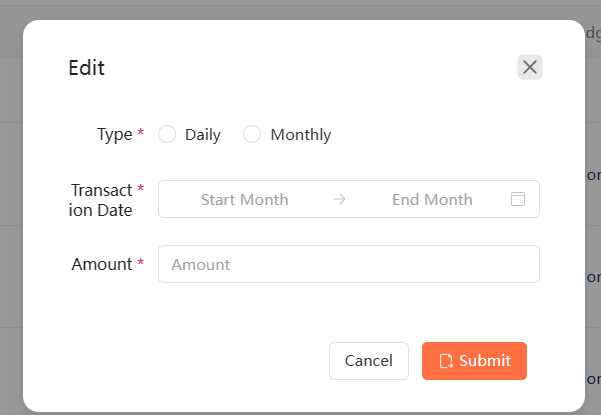
*Before setting the budget, the balance that the user has already charged on the card will not be included in the budget.
3.3 Records
a.Balance Detail
Go to "Balance Detail" to see records for change in account balance.
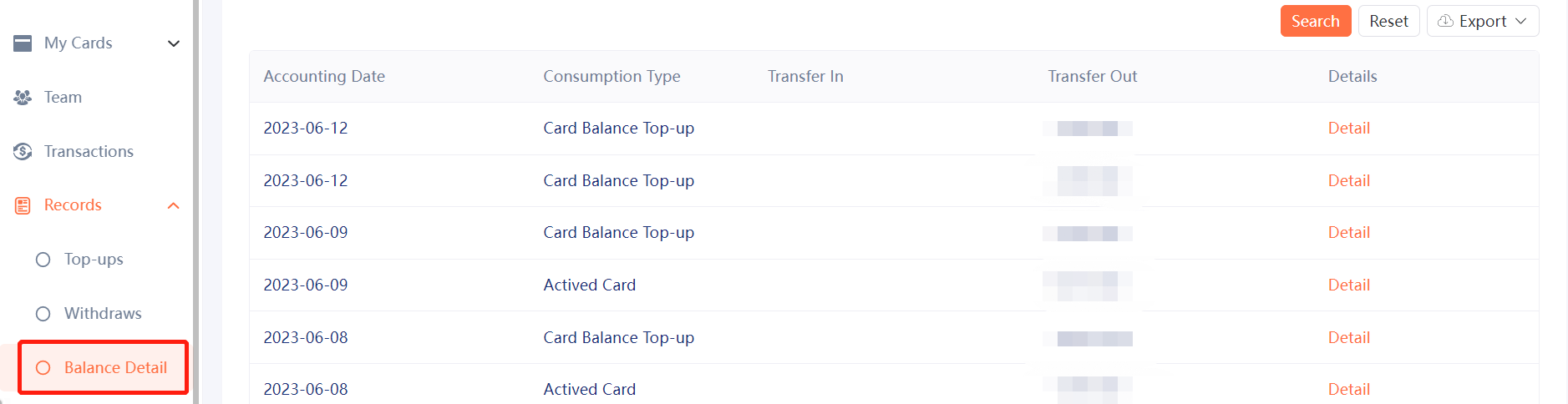
*Please use filter of type to check your records for release.
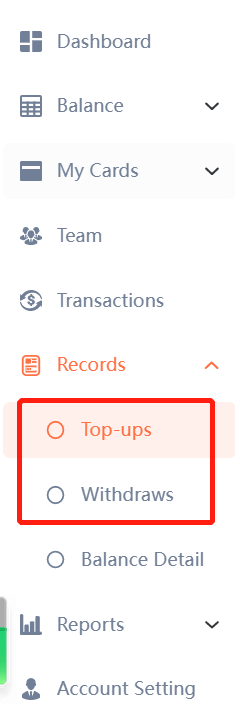
b.Top-ups and Withdraws
Go to "Top-ups" and "Withdraws" to see records for recharges and withdrawals.
3.4 Reports
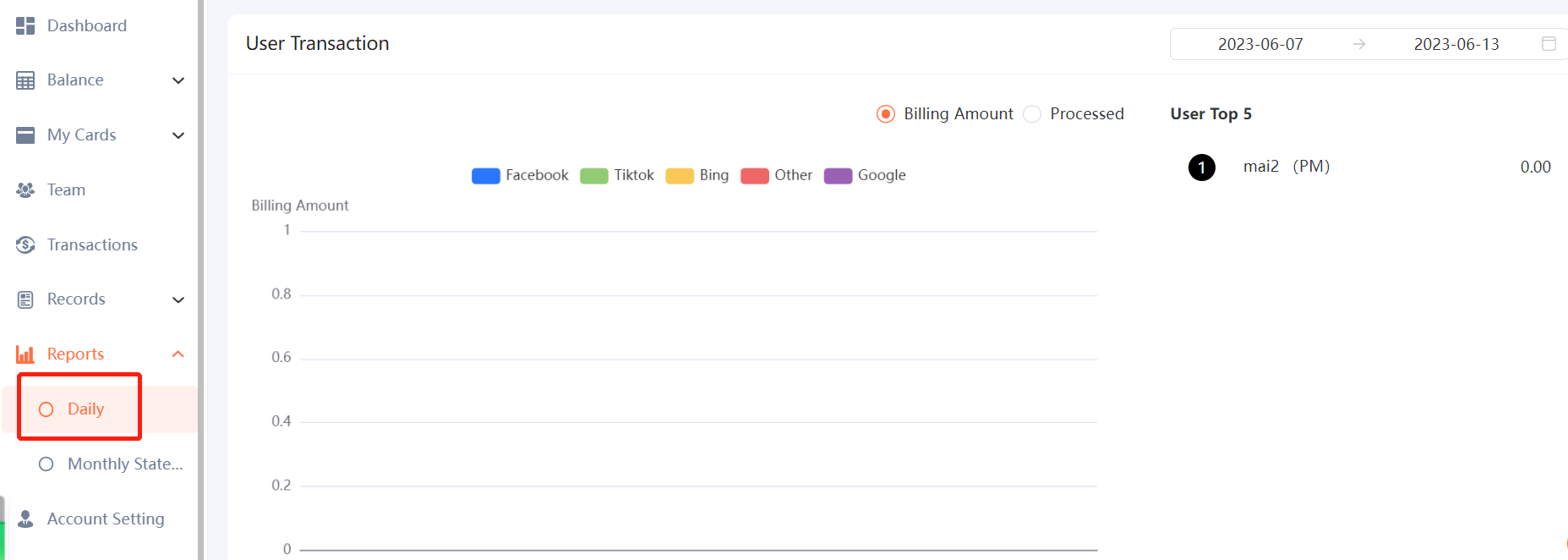
a.Daily Report: All users' transactions (either approved or declined) by date.
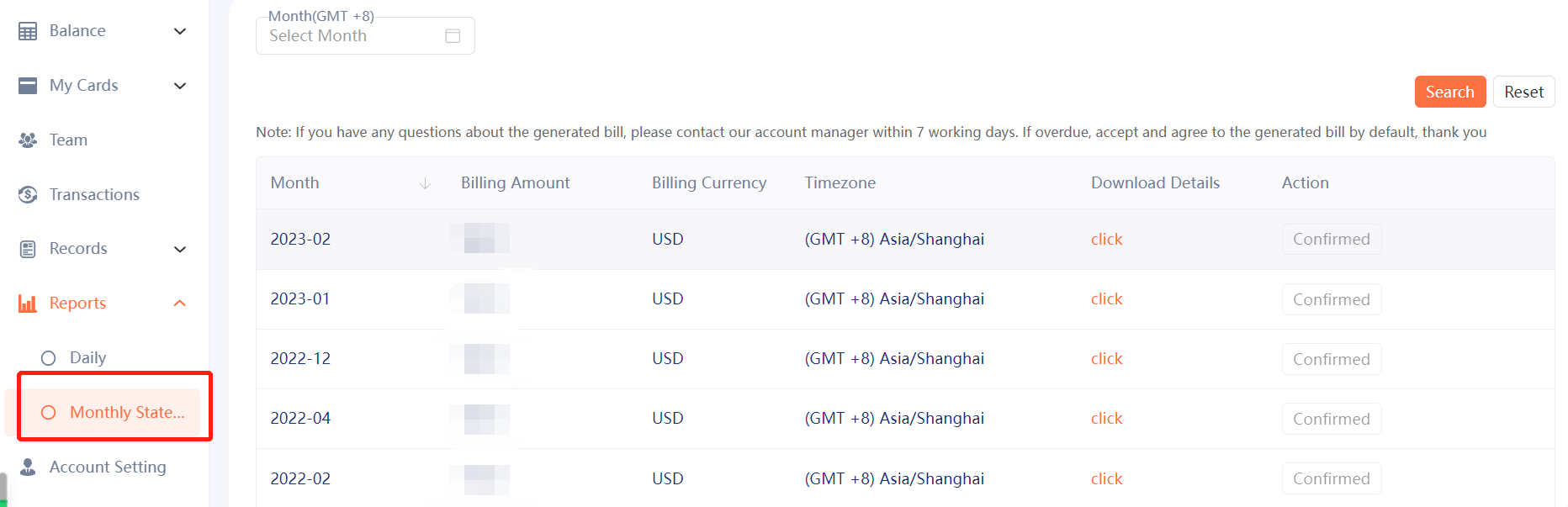
b.Monthly Statements: All the final statements of transactions in previous months.
*Please note that the Monthly Statement will be updated on the 5th of next month.
4. Special Notes
4.1 Release from Facebook
Pending transactions on hold from FB from 1st to 15th of each month will be released on the 1st of next month. Pending transactions on hold from FB from 16th to 31st of next month will be released on 15th of next month.
4.2 Transfer between Accounts
Process:
1.Please inform your AM of the accounts and make sure there is enough balance in the account.
2.AM will confirm the transfer amount and account information through email.
3.You will receive an "Adjustment" within 5 business days.
4.3 Withdrawal from Account
Method: only support withdrawal of USD back to bank wire or Capitalist account.
Condition:the account will no longer be used and shall be deleted.
Process:
1.Withdraw the balance of all cards to the account balance
2.Stop all transactions and monitor for 5 business days (in case there are refunds on the way).
3.Please inform your AM of your bank information or capitalist account. Your AM will further confirm the withdrawal amount and account information with you by email.
4.It will take 3-5 business days to receive the withdrawal in your designated account.
*Once the account is deleted, it can not be reactivated. A new email address shall be used for registration.